In-Store Selling
Turn a walk-in into a closed sale, right at the counter.
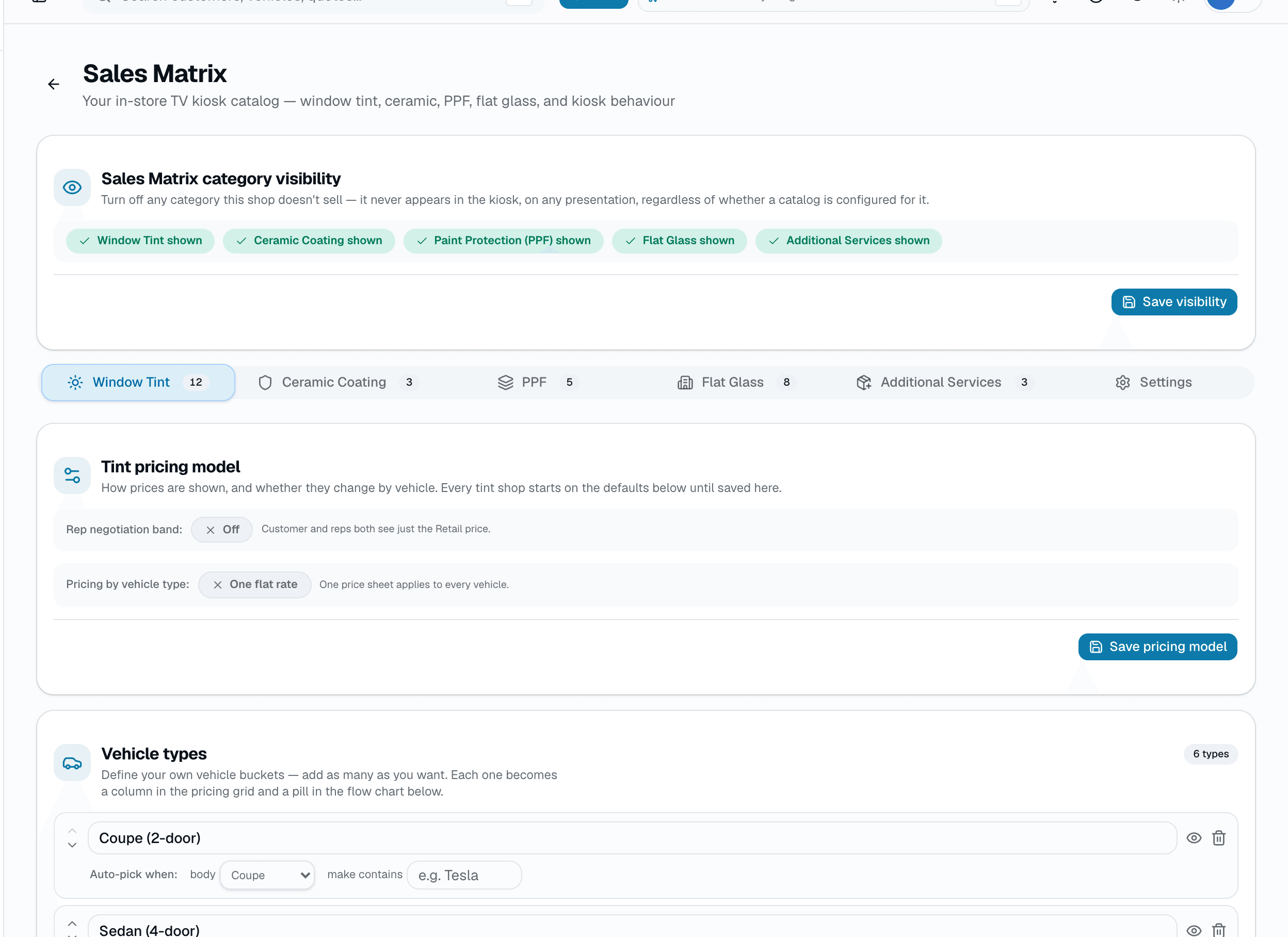
Sales Matrix is the customer-facing screen your team runs at the counter or the round table: a step-by-step walkthrough of the categories a customer's interested in — window tint, ceramic coating, PPF, flat glass — each framed as Good/Better/Best (or the category's own equivalent) in a guided flow, followed by a shop-defined Additional Services step. The tier cards lead with Best so customers see your full range first. Every tap logs to a real event trail, and tapping Save as quote or Create invoice at the end creates a real Quote or Invoice and books a real appointment on your calendar — the same records the rest of the app uses, not a separate sales-only database.
- Runs full-screen on a TV or tablet — the customer sees the presentation, not your app's sidebar
- Walks Window Tint, Ceramic Coating, PPF, and Flat Glass one at a time; a category the shop hasn't configured (or has turned off) skips automatically
- Optional AI window-film visualizer step, off by default
- Live running total, with a 'bundle savings' line once 2+ categories are added
- Ends with Save as quote (creates a draft Quote) or Create invoice (converts straight to a real Invoice) — either way, an appointment auto-books on your calendar
What this looks like in a shop
Illustrative scenario: A customer at Sample Shop LLC sits down at the round table for a ceramic coating quote. The rep taps through the TV — Ceramic Coating first, with the shop's real pricing and the Best tier card shown first. On Additional Services, the rep taps 'Suggest add-ons' and adds a ceramic maintenance kit pulled straight from the shop's own catalog. The customer decides to add window tint too, and the running total picks up a bundle-savings line. The customer agrees; the rep taps Create invoice, and by the time they stand up, the appointment is already on the calendar and the invoice is ready to pay.
The catalog behind it
Operations kanban
Every open quote on one drag-to-advance board
Most shops run the day from a whiteboard, a notebook, and a manager's head. The Workflow board replaces that with a single quote-based Kanban: every quote lives in a column, columns are fully customizable per shop (rename, recolor, add, mark terminal), and dragging a card into a terminal column automatically sets that quote's status to Approved. A separate Unassigned lane holds quotes with no column yet, and a read-only Online Bookings lane shows new public-booking-page appointments that haven't been checked in.
- 6 default columns on signup — New Leads, Quoted, Follow Up, Scheduled, In Progress, Completed
- Drag-to-advance — moves the quote to a different column
- Dropping a quote in a terminal column auto-sets its status to Approved
- Pipeline / Projected / Collected value rollups + active-quote count
- Unassigned lane for quotes with no column yet
- Read-only Online Bookings lane — new public-booking-page appointments not yet checked in
What this looks like in a shop
Illustrative scenario. A shop manager opens the Workflow board Monday morning. New Leads has a handful of inquiries; Follow Up has quotes sent Friday with no reply. She drags two into Scheduled after confirming by phone — that's a column change only, no automatic message fires from the board itself (the calendar booking, if any, is what sends the confirmation text). By afternoon a few jobs land in Completed, which auto-approves those quotes.
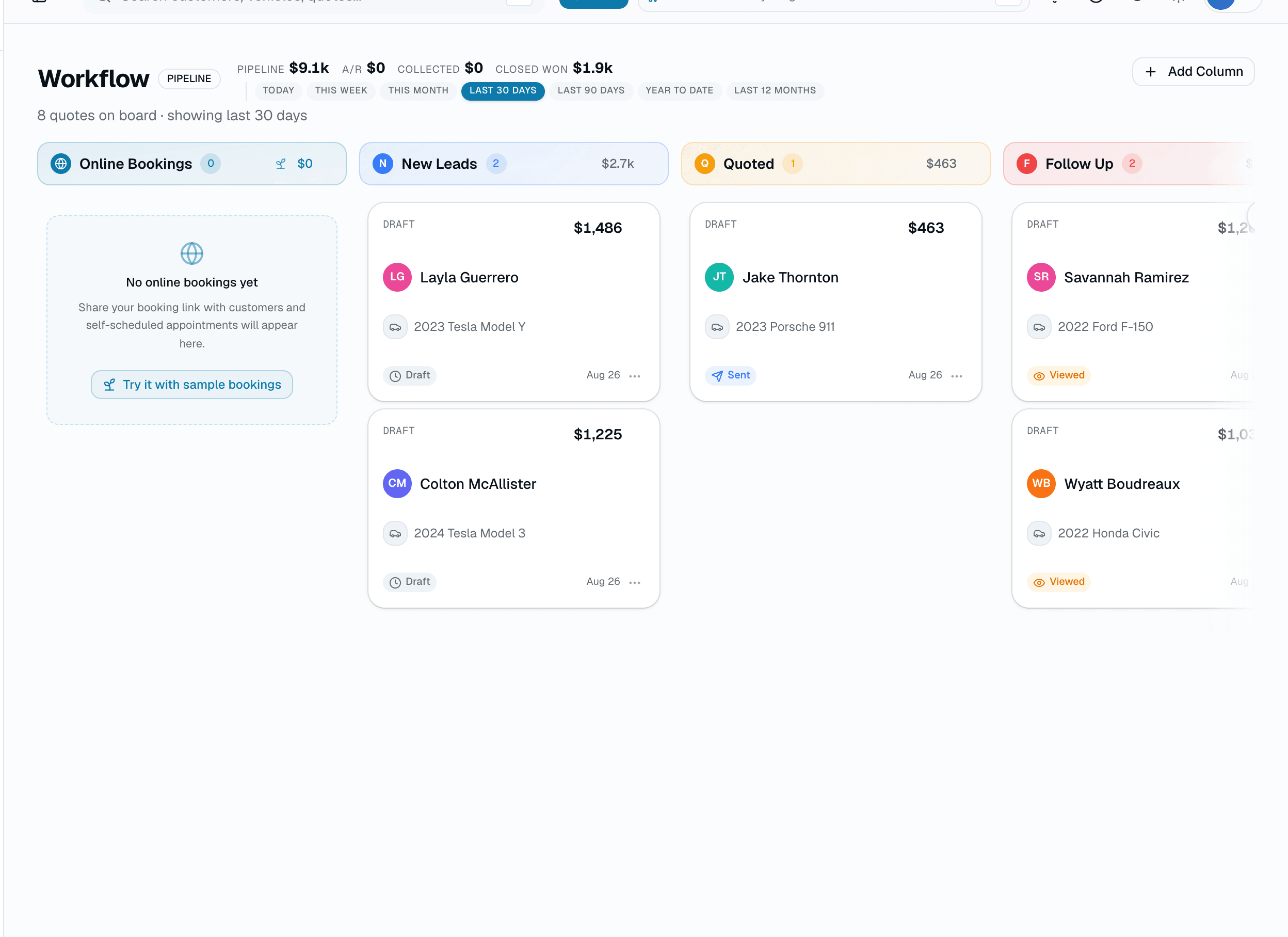
Workflow board — quotes, fully customizable columns
Customer CRM
Every customer, vehicle, and history in one place.
Your shop's five-year memory, in one searchable place. Every customer, every vehicle they've owned, every appointment you've done, every quote, every payment, every photo, every SMS — all reachable from their profile the second someone walks in the door. Search by plate, VIN, phone, or a guess at the name. No more spreadsheets, no more paper folders, no more asking the tech if you've done this car before. The record stays clean because the product forces it to.
- Unlimited customers on every plan — never archived, never charged per-contact
- Multi-vehicle per customer
- Notes, tags, and VIP / referral-source / fleet / do-not-book labels
- Marketing opt-in per customer, plus a hard SMS opt-out (STOP) with the consent source and date recorded — TCPA-ready
- Customers with any quote, invoice, appointment, or warranty can't be deleted — merge duplicates instead
- Per-customer portal link — they see their own quotes, invoices, warranties
What this looks like in a shop
Illustrative scenario: Jessica rolls into the shop in a blacked-out G-Wagen. You punch in 'BLK4U' — the plate pops right up. You see she was in 18 months ago for ceramic, there's a scratch she noted last time, her phone is on file, and she's tagged 'VIP Referral Source.' Her notes and past jobs are right there when you start her install quote.
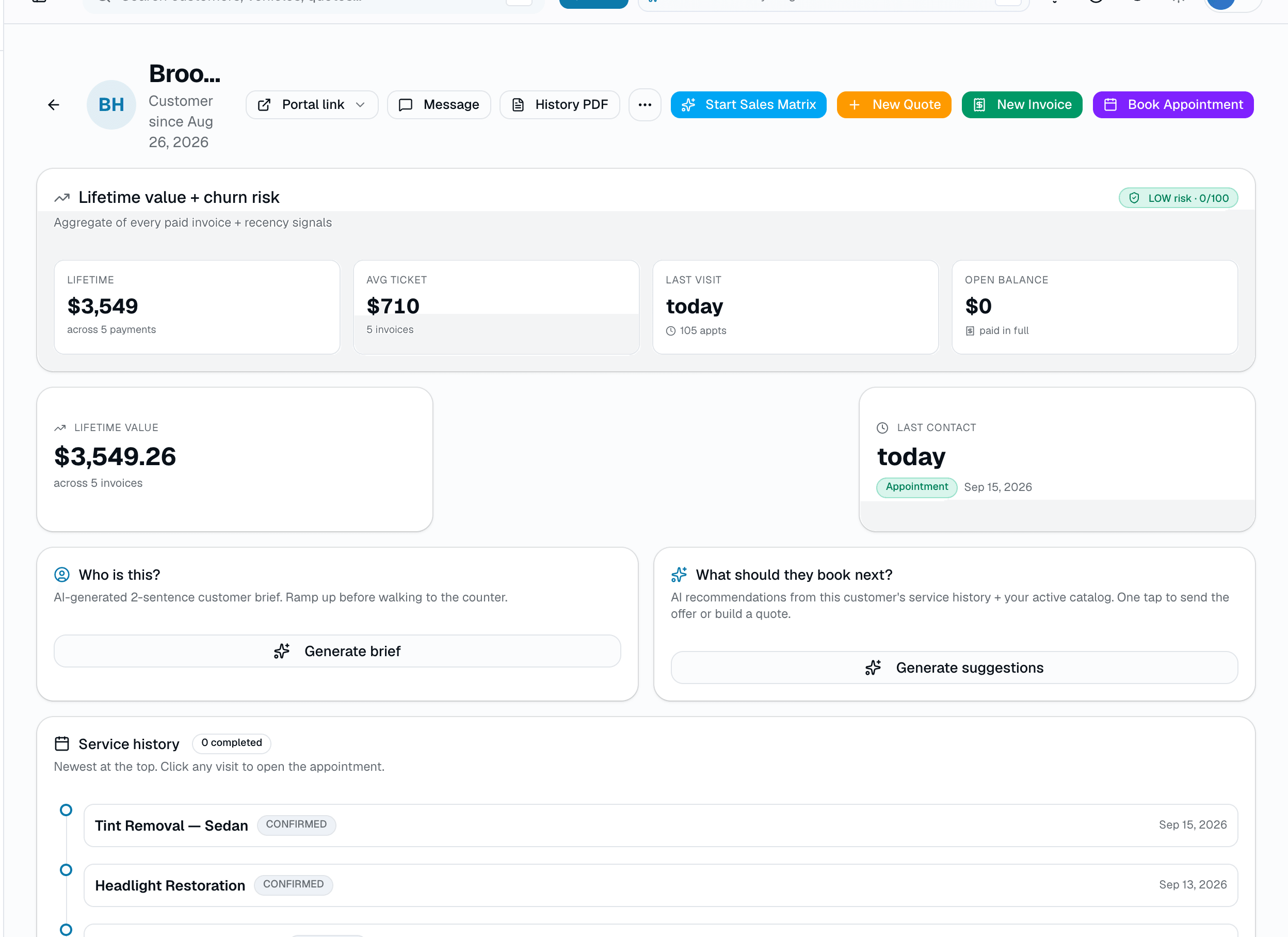
Customer profile
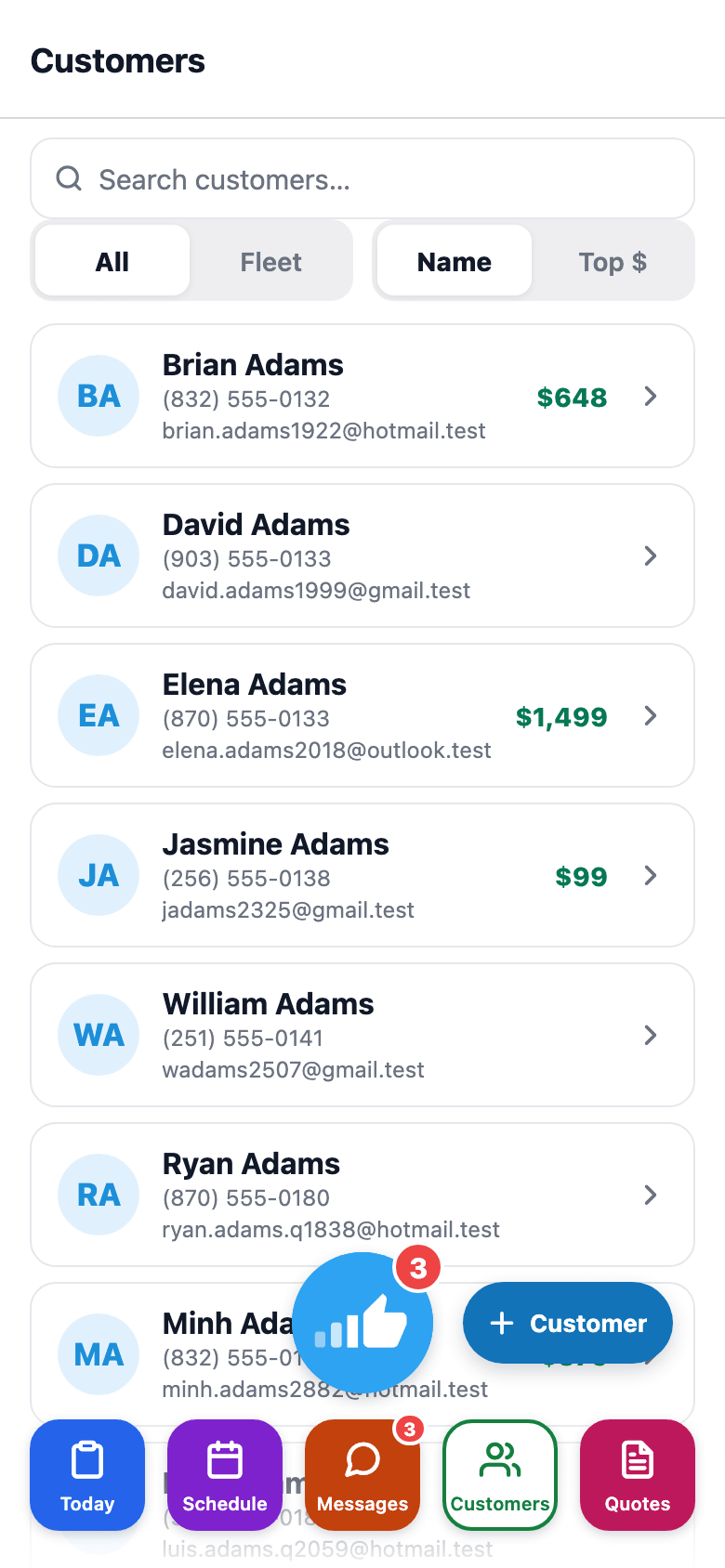
Also on mobile
The mobile app's Customers tab lists every customer with lifetime value at a glance — the same CRM data as the web app, in your pocket.
Scheduling & Calendar
The calendar your shop actually runs on.
A shared calendar every installer and bay assignment pulls from, in day, week, and month views. Drag a card to a new day in week view and it moves — a drag or an online booking that double-books a bay is blocked outright, and adding a new appointment by hand flags the conflict and lets you confirm an override. On Starter and up, confirmations, reminders, and no-show follow-up texts go out on their own (Basic has no outbound SMS or email). Opens online booking to your customers without opening a scheduling hole.
- Day, week, and month views
- Every appointment shows its assigned installer or bay
- Filter by installer/bay from the calendar toolbar
- Jump to any date with Today / prev / next
- Dark mode that works in a bright shop
What this looks like in a shop
Illustrative scenario: Saturday is chaos at most shops. A customer calls wanting a PPF install on Friday. Open the calendar — day view lists everything scheduled, each row colored by which installer or bay it's assigned to. Book the new appointment against an open installer, and their confirmation text goes out right away. If a Friday job needs to move, drag it to a different day in week view; the assigned bay's conflict check blocks it if that slot's already taken.
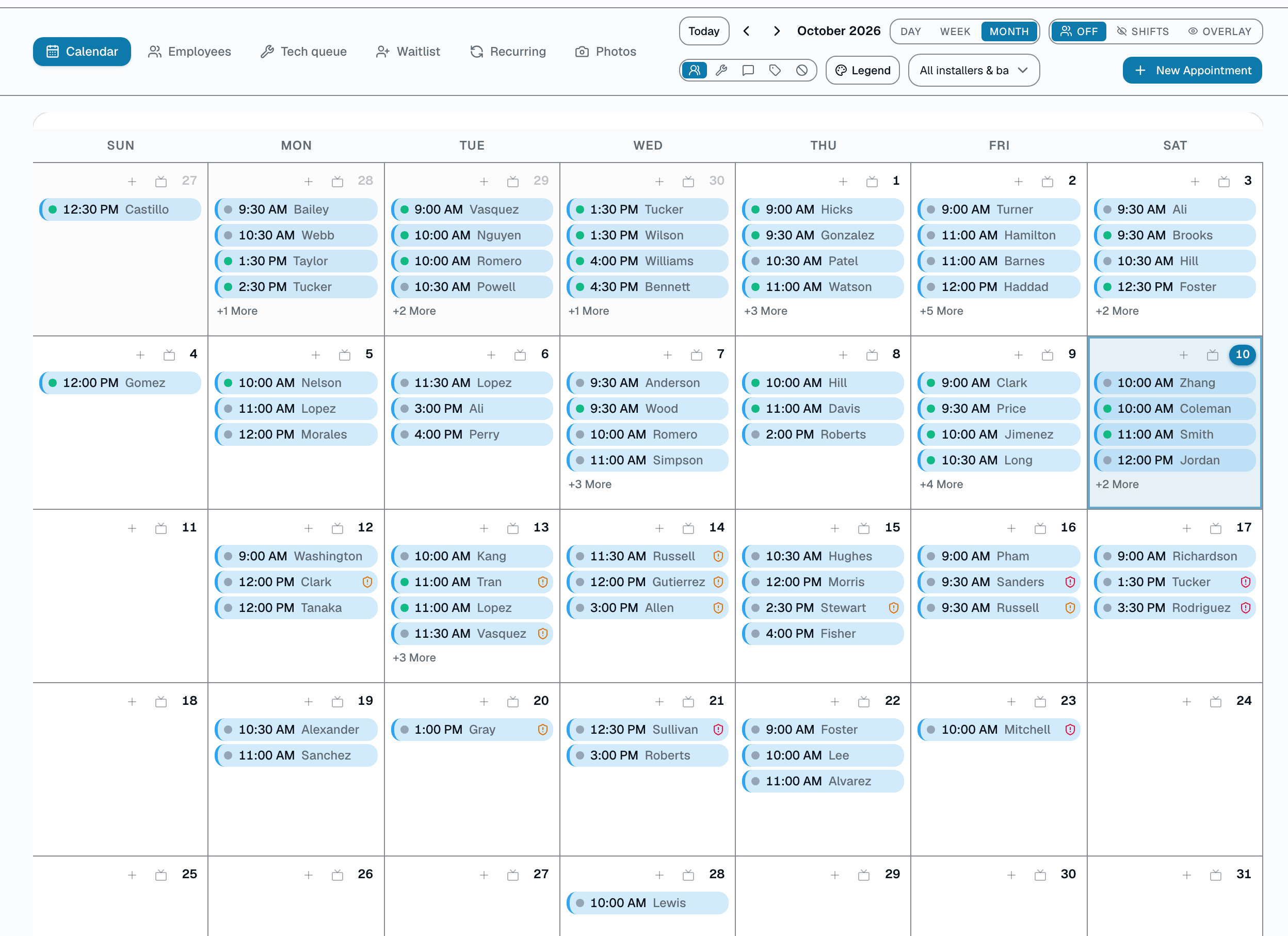
Month view
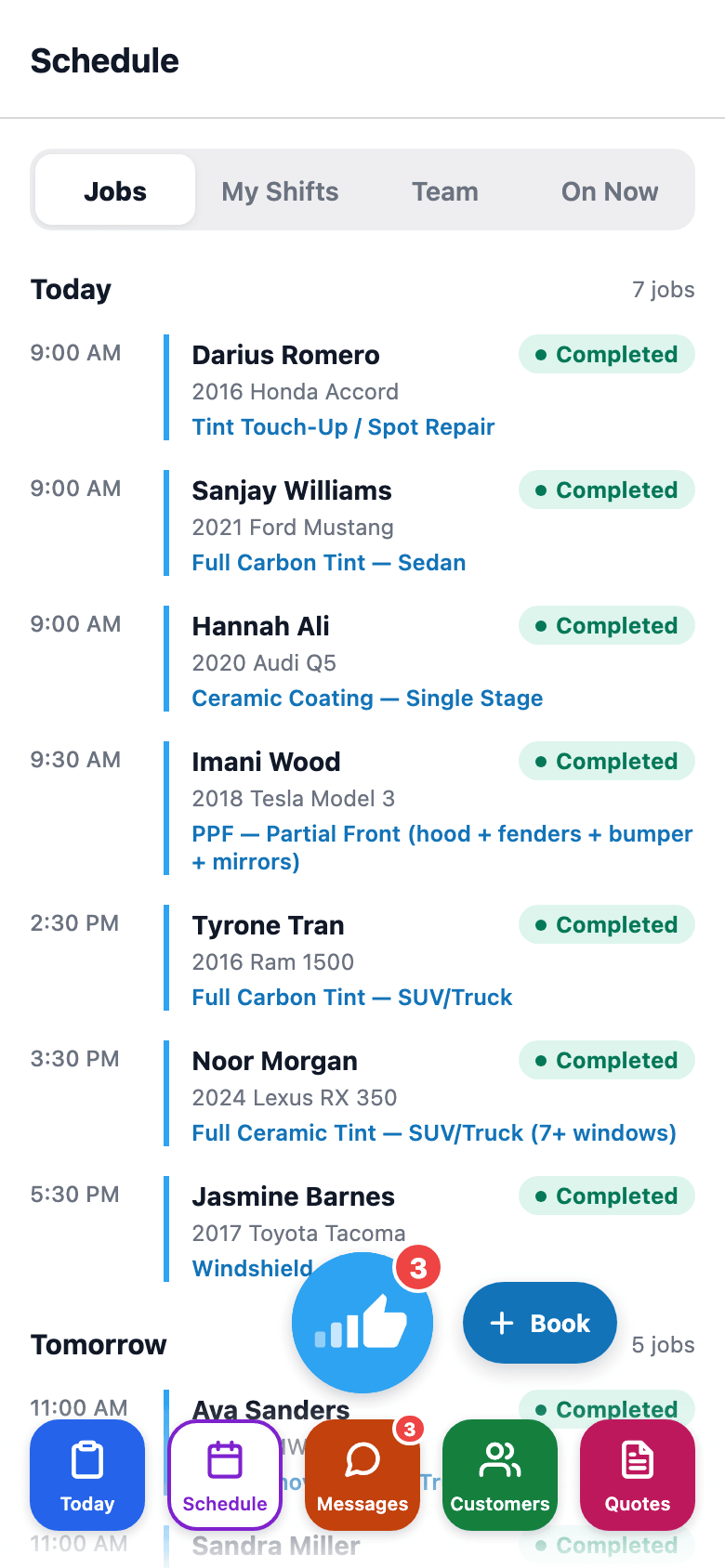
Also on mobile
The mobile app's Schedule tab shows the team schedule — jobs, shifts, and who's on now — for whoever's on the floor.
Quotes & Estimates
One clean quote. Line items, e-signature, a deposit link.
The strongest quote is one the customer can read on their phone and approve with a signature. SalesThumb turns a price conversation into a signed commitment and a paid deposit in a couple of minutes — while you're still on the call. Every quote is one fixed set of line items (services, film, parts, fees, discounts) with one total; there's no separate customer-facing tier picker — if you want to offer a customer a choice, you send them the quote you want them to pick, built with the film tier (Good/Better/Best) you and the customer already agreed on.
- Line items: services, film, parts, fees, discounts, add-ons
- Guided window-tint picker: tap a window, pick a Good/Better/Best film tier + VLT shade, priced against your catalog
- Reusable templates (name/description/optional vehicle-class tag) loaded manually from a search popover
- AI quote-suggest (Pro): describe the job in plain English, get pre-filled line items
- Draft auto-saves to your browser as you type (not shown as a live counter)
- Contract pricing overrides: a standing flat price or % off for fleet, dealer-group, and VIP accounts, set once in Settings → Fleet Pricing and applied automatically on every future quote
What this looks like in a shop
Illustrative scenario: Your phone rings: 'What's a full ceramic tint on a Model Y?' You open a new quote, tap 'Add window tint,' and paint the Better tier across the full 7 windows — it prices off your catalog automatically. Send. Two minutes later she signs on her phone and pays the deposit — the job is approved and the deposit is in while you're still on the call.
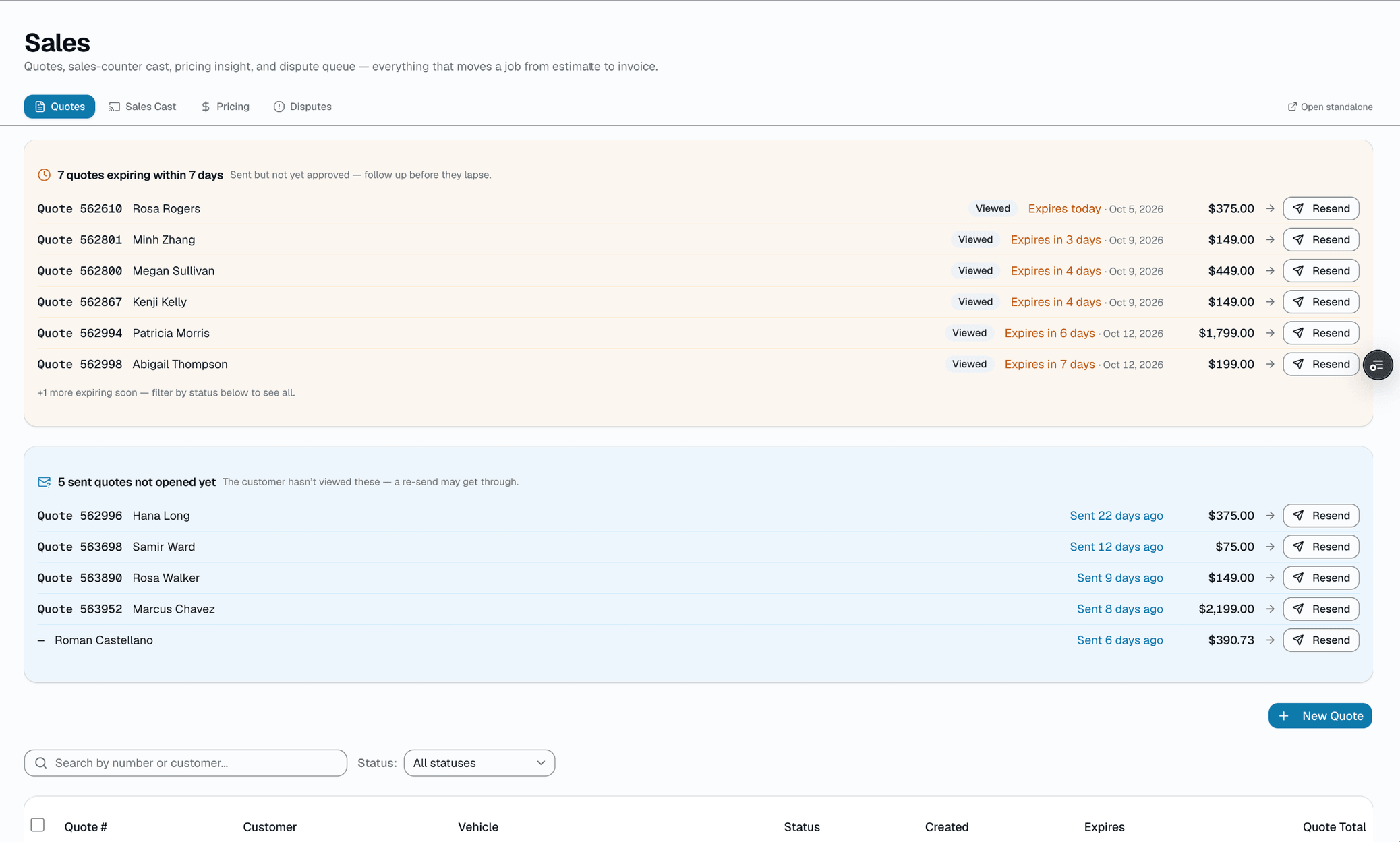
Quote builder
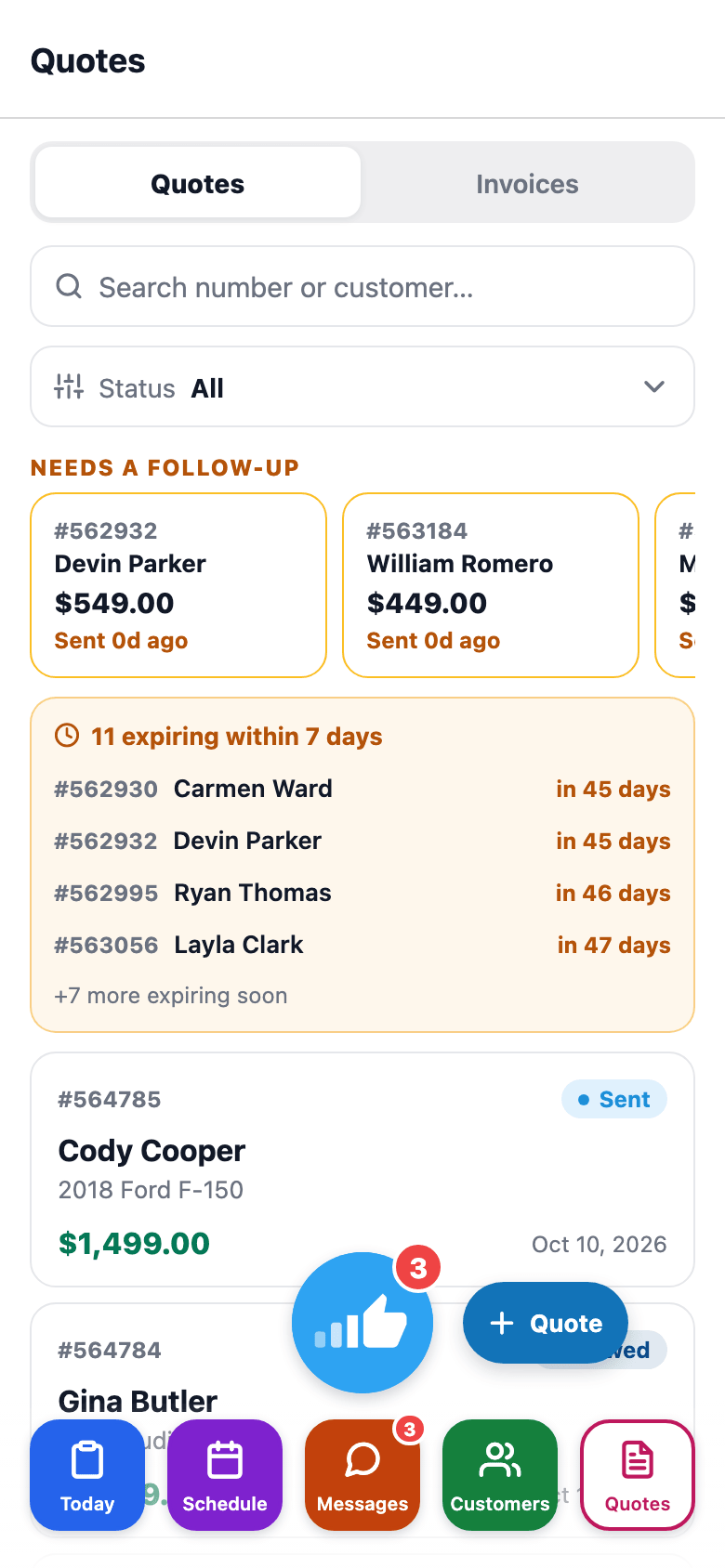
Also on mobile
The mobile app's Quotes tab shows quotes and invoices with status badges — sales staff can check status without opening a laptop.
Invoices & Billing
Invoices your customer actually reads.
Invoicing in SalesThumb is a one-tap transition from job-done to money-in. Convert any approved quote to a branded invoice, adjust if scope changed, and send a pay link over SMS or email. Your customer opens it on their phone, pays by card, and the invoice ties back to the quote, the deposit, and the appointment. Paid invoices push one-way into QuickBooks Online with a tap, the matching customer created automatically. No more Venmoing yourself from the customer's iPhone while the install waits. You do the work, we collect the money, your paid invoices land in QuickBooks.
- One-click quote → invoice (deposits carry, line items lock, number increments)
- Line items with per-line tax, unit price, quantity, discount
- Auto-numbered per shop from one sequence shared with quotes
- Optional due date per invoice, plus an overdue view (from the dashboard) of unpaid invoices older than 30 days
- Configurable fees (Settings → Fees) — start from presets like Shop Supplies, EPA/Hazmat, Disposal, Fuel Surcharge, and Rush Fee, or add your own; flat or percent, on quotes, invoices, or both
What this looks like in a shop
Illustrative scenario: You finish a $1,200 ceramic coating. The quote was approved two weeks ago with a $200 deposit. You tap Convert → the invoice appears pre-populated with the quote lines and $200 already credited. Balance due: $1,000. Text the pay link. She taps to pay. Push it to QuickBooks with a click.
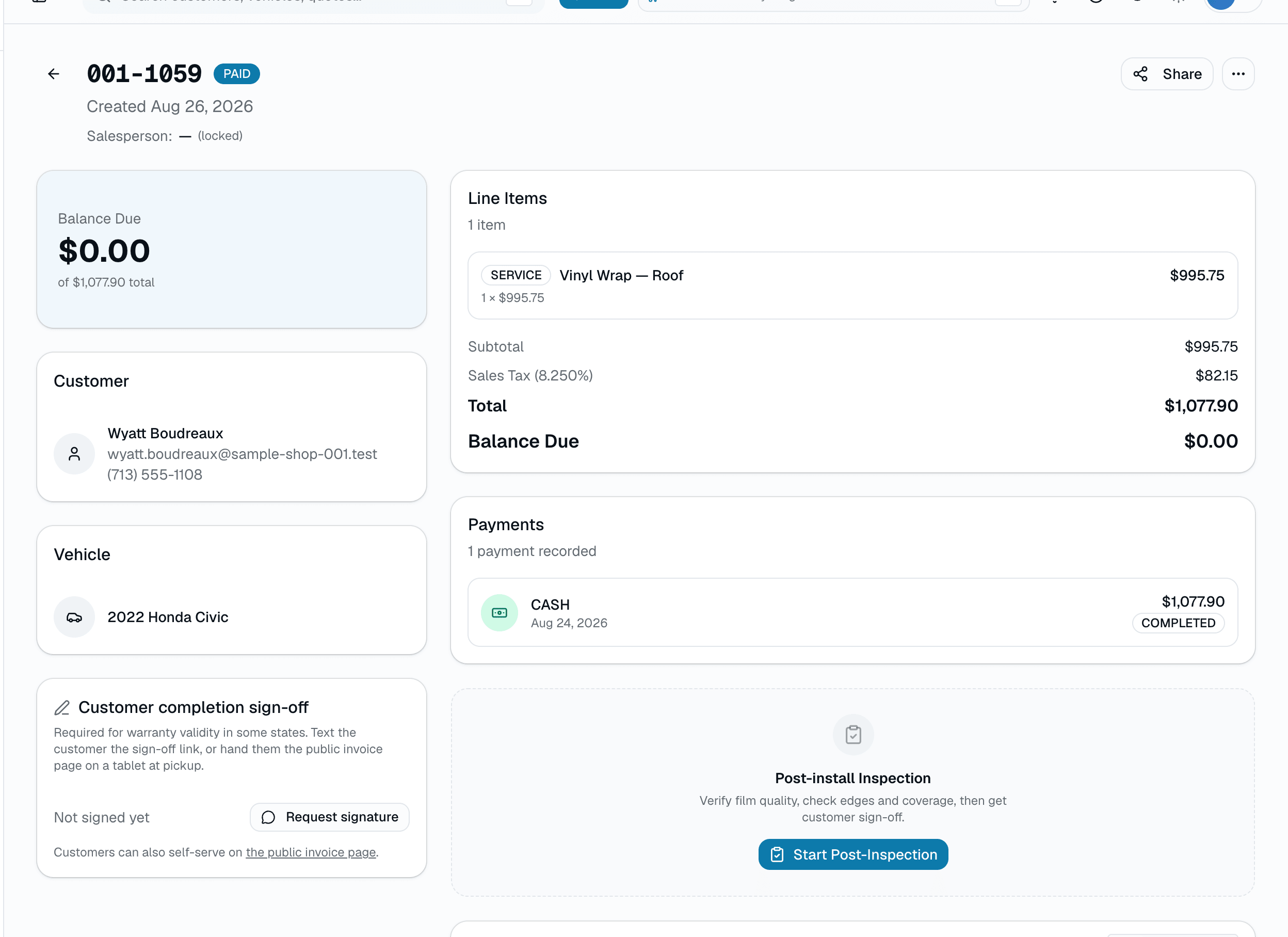
Invoice editor
Online Payments
One connected processor, transparent fees.
Payments in SalesThumb ride on a single integrated payment processor, with flat-rate pricing (one bundled all-in rate) on every plan, or interchange-plus pricing on Growth and Pro. Pay links go out over SMS, open on the phone with card payment above the fold, and tap-through in a few seconds. Refunds, deposits, partial pays, and disputes all live in the app. Merchant onboarding is a short hosted application through the processor's own widget; funds settle on the processor's schedule, which SalesThumb doesn't configure. No Square terminal reconciliation. No Venmo screenshots. No "can you send me a text when it goes through?"
- Pay links over SMS + email with card payment above the fold
- ACH recorded as a manual payment method (like cash/check) — not a self-serve online ACH debit today
- Fast, no-login checkout on every pay-link page
- Tip capture on every card transaction (15/18/20% presets + custom)
- Cash, check, ACH, financing — manual entry by staff
What this looks like in a shop
Illustrative scenario: Invoice goes out via text. Customer taps the pay link, pays by card in a few seconds. The payment is reconciled automatically against the invoice. No QuickBooks export. No Square dashboard. No sticky notes.
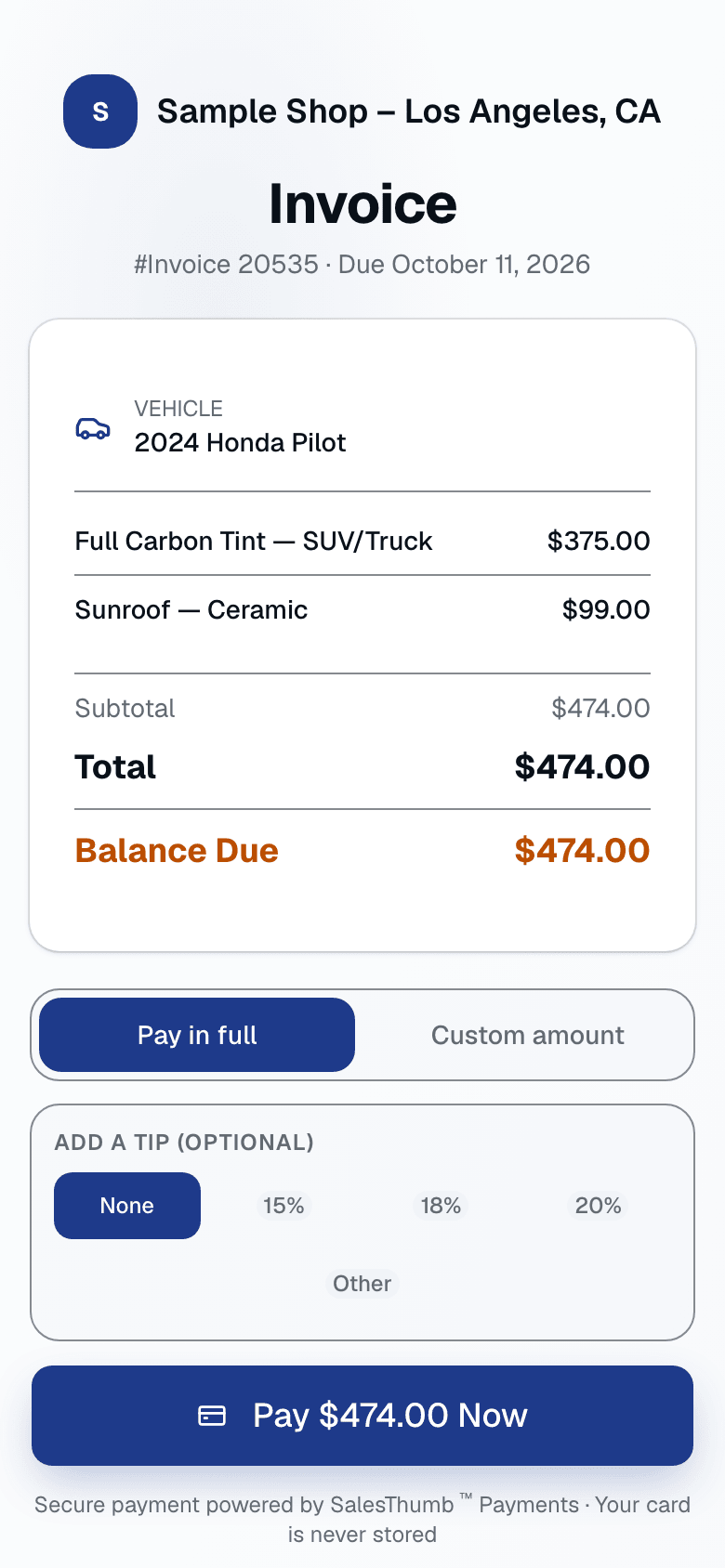
Pay link (mobile)
Film Roll & Inventory
Film roll tracking that actually knows what's on the shelf.
Inventory is the most painful process in a tint or PPF shop — and the one every other SaaS gets wrong. SalesThumb tracks rolls the way you actually use them: by length remaining, by batch, by the installer that cut from them, linked to the appointment they went into. Receive a shipment, log it, and go. Deduct what each job used from one screen once it's done. When a roll dips below your threshold, you get the alert before you're mid-install asking the customer to wait. Log the batch and lot number when you receive the roll, and if a warranty question comes up later you can look up exactly which roll and batch went into a job — right in your inventory records.
- Rolls: track by remaining inches (tint / PPF / wrap)
- Bottles: track by remaining ounces (ceramic / sealant / compound)
- Batch + lot numbers on every unit
- Multi-location: rolls live at a specific shop, not a generic pool
- Shop-to-shop transfers for multi-location orgs (request, approve, ship, receive)
What this looks like in a shop
Illustrative scenario: Friday morning you pull a tint roll off the shelf, open the roll's page, and see 240" remaining. You install a sedan (uses 68"), record the usage, and the roll updates to 172". When a roll crosses its reorder threshold, it shows up on the low-stock view so you catch it before you're stuck mid-install.
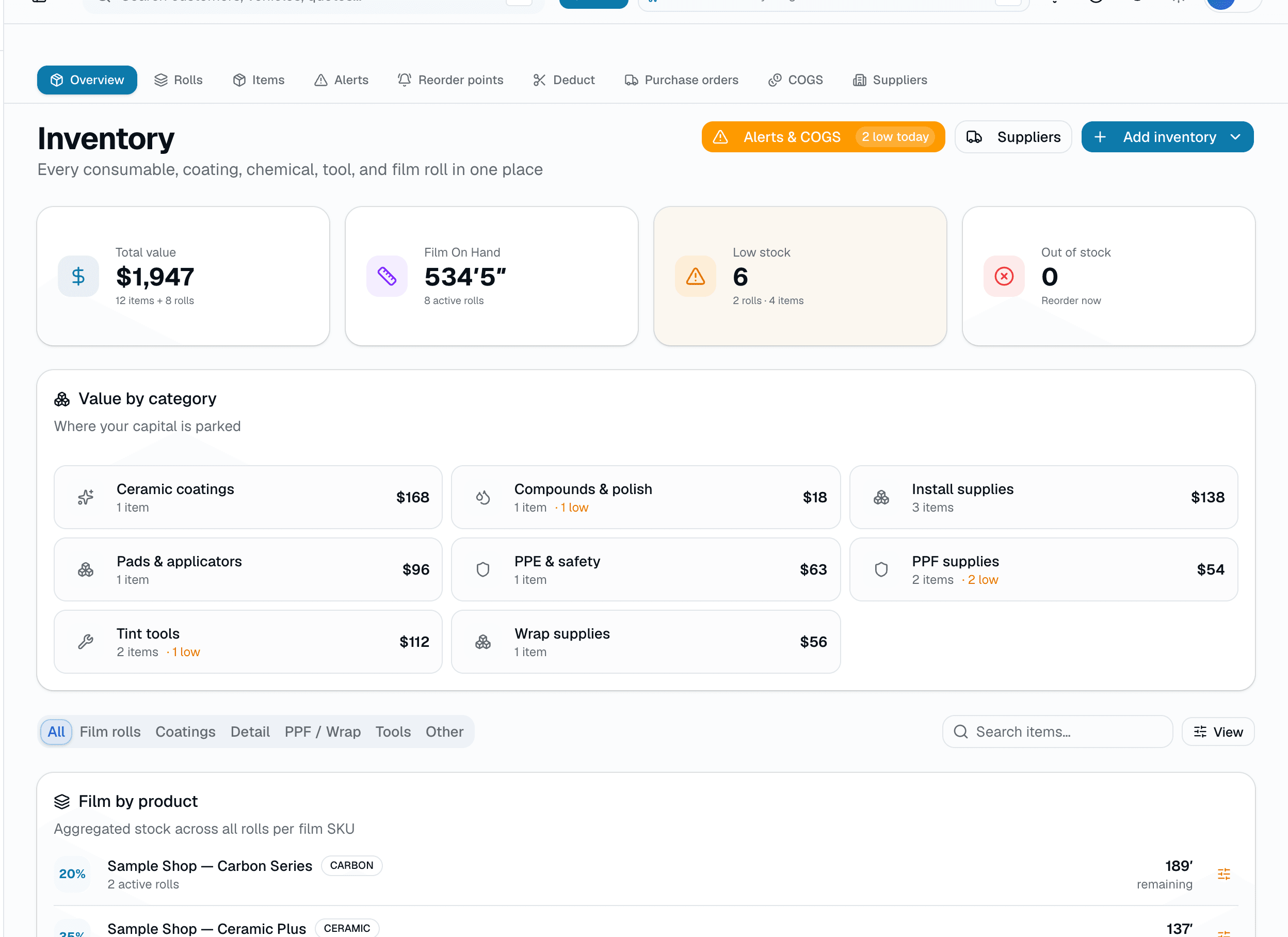
Rolls overview
Warranty Certificates & Claims
Warranty certificates with a QR verify link. Tracked claims. Happier customers.
Warranty is the one feature every shop either ignores or does badly on paper. SalesThumb generates a certificate PDF for any completed install — a staff member registers it in a couple clicks, picking one of your saved coverage tiers if you've set them up — with a QR code linking to a public verify page. Customers can file a claim right from that page with nothing but the certificate number. A claim lands in your inbox with the install details already attached — no email chain asking what kind of film they have.
- Staff registers the warranty from the appointment page — not automatic on job completion, optionally against a saved coverage tier
- Install fields: film/windows description, installer name, install date, warranty period
- Real QR code + link to a public verify page (app.salesthumb.com/warranty/{certNumber})
- Generic PDF template — no shop logo or brand-color customization today
- One coverage tier per certificate
What this looks like in a shop
Illustrative scenario. A customer had ceramic tint installed 2 years ago and notices a bubble. She finds her certificate number, opens app.salesthumb.com/warranty/WR-20260420-7HKQ3M9XZP — no login needed — and files a claim: name, email, phone, 'Bubbling,' and a short description. The shop sees it in their claims inbox with the install details already attached and marks it Approved after a quick look.
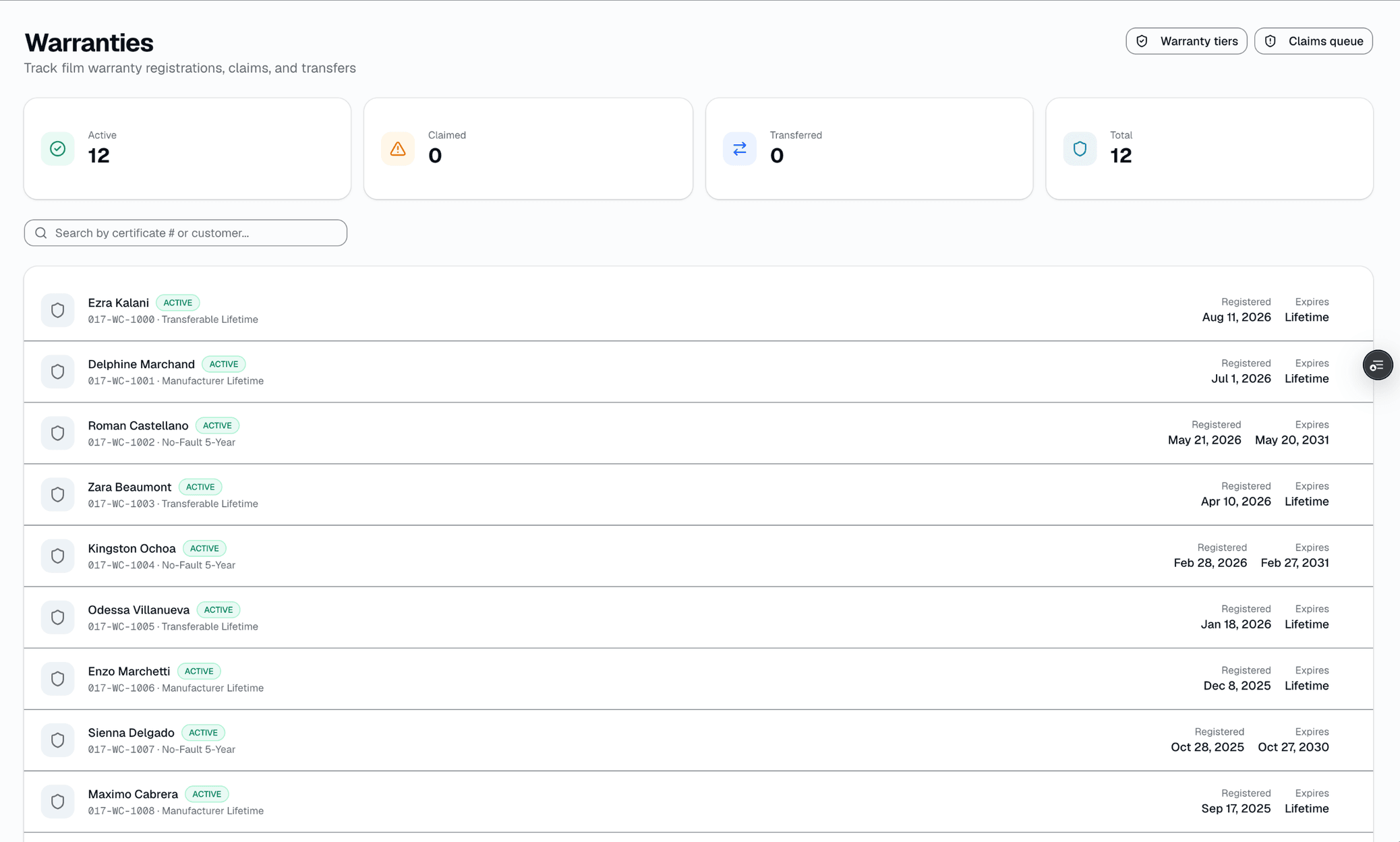
Certificate PDF
Also on mobile
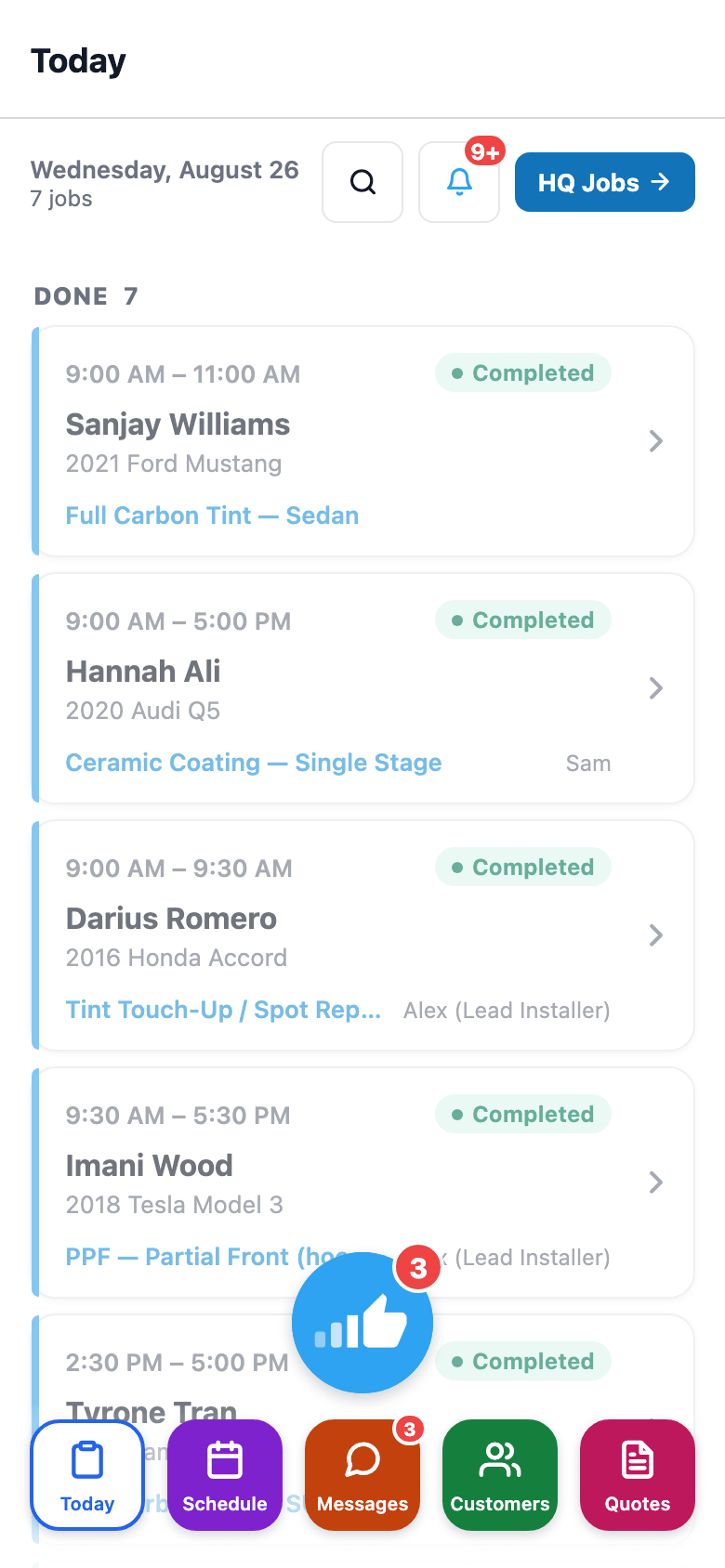
Warranty Triage — assess a claim (Pro plan) — is one of the AI Tools shortcuts on the mobile app's Today screen, alongside Photo → Quote and Install QC.
Reports & Analytics
83 reports. Grouped here by the decision they answer.
SalesThumb ships 83 real reports, organized in the app into 14 sidebar categories. Grouped a different way — by the decision you're actually making — the same 83 reports sort into six clusters: cash & revenue, job & service profitability, team & schedule performance, marketing & lead performance, customer retention & risk, and customer obligations. Pick the decision below and you'll find the handful of reports that answer it — the same reports you'll recognize once you're in the app's 14-category sidebar. Two daily digest emails (a revenue recap and a morning standup) land in your inbox automatically, and most individual reports export to CSV on demand. There's still no single unified home screen with every metric crammed onto it — what's here instead is the report you need, findable by the question you're actually asking.
- Revenue Overview, Daily Revenue, Payment Methods, Sales Tax, AR Aging, Discounts & Coupons, Year-over-Year, End of Day Close, 12-Week Trend, Voids & Refunds
- Transactions, Processing Fees, Royalties paid, Deposits, Chargebacks — where the money actually moved
- Close Rate Funnel (quotes sent → approved → converted) plus the kiosk's own Sales Matrix — pivot grid, funnel, and scorecard views
- Quote Aging — which open quotes are going cold
What this looks like in a shop
Illustrative scenario: You open Reports and pick Gross Profit per Job: 58 completed jobs this month, $31k profit after material cost, one PPF job standing out at a thin 58% margin worth a second look. Separately, the 8am revenue-recap email already told you yesterday brought in $2,340 — you didn't have to open the app to know that.
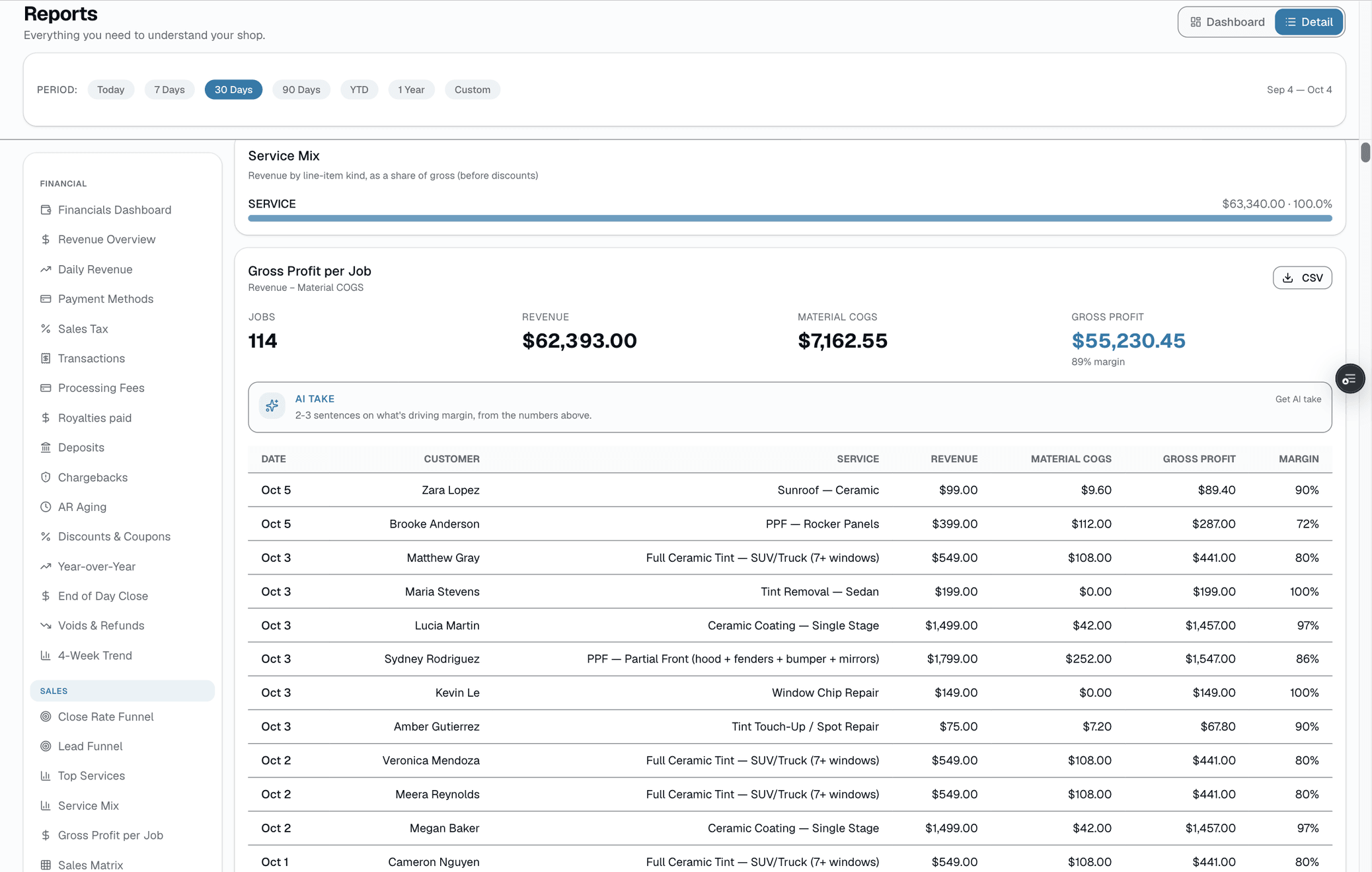
Gross profit per job
Messaging cost control
A $100/mo wall between you and a runaway drip sequence.
Drip sequences and bulk blasts are powerful — and one mis-configured trigger can fire thousands of sends in an afternoon. The Messaging Spend Cap is the per-shop ceiling that stops that from becoming a surprise bill. Sends within your plan tier's included SMS/email allowance are free and don't touch the cap at all; once a shop goes over that allowance, every additional send — including automated reminders, not just drips and blasts — draws against a single monthly overage bucket, confirmed in code ("Every send path — drips, reminders, review requests, blasts, automation ticks, etc. — passes through this central gate"). Default cap is $100/mo of overage per shop. Hit it, new sends pause until you raise the cap in Settings → Payments or the month resets. For shops sending genuinely high volume, BYOC mode lets you bring your own Twilio + Resend credentials and skip the cap entirely — pay your carrier directly.
- $100/mo per-shop default cap on OVERAGE dollars, once you're past your tier's included SMS/email allowance
- Live usage bars + overage status in Settings → Payments
- In-page color warning at 75% of the cap, red at 100% — no push/email/Slack alert today, you see it when you open the page
- Applies to every send once you're over allowance, including automated reminders — not just drips and blasts
- Self-service raise up to $1,000/mo overage; above that needs a manual admin override
- BYOC escape hatch — bring your own Twilio + Resend, skip the cap, pay carriers direct
What this looks like in a shop
Illustrative scenario: a new tech at Sample Shop LLC accidentally wired a welcome drip to fire on every customer record instead of just new ones, well past the shop's included SMS allowance for the month. At roughly 1.5¢/segment overage, the queued batch would have added real cost on top of an already-elevated running spend. The cap stopped new sends once the overage total hit $100 for the month. Mike opened Settings → Payments, saw the cap maxed out with a red status, raised it to $200 for the rest of the month, and fixed the drip's trigger.
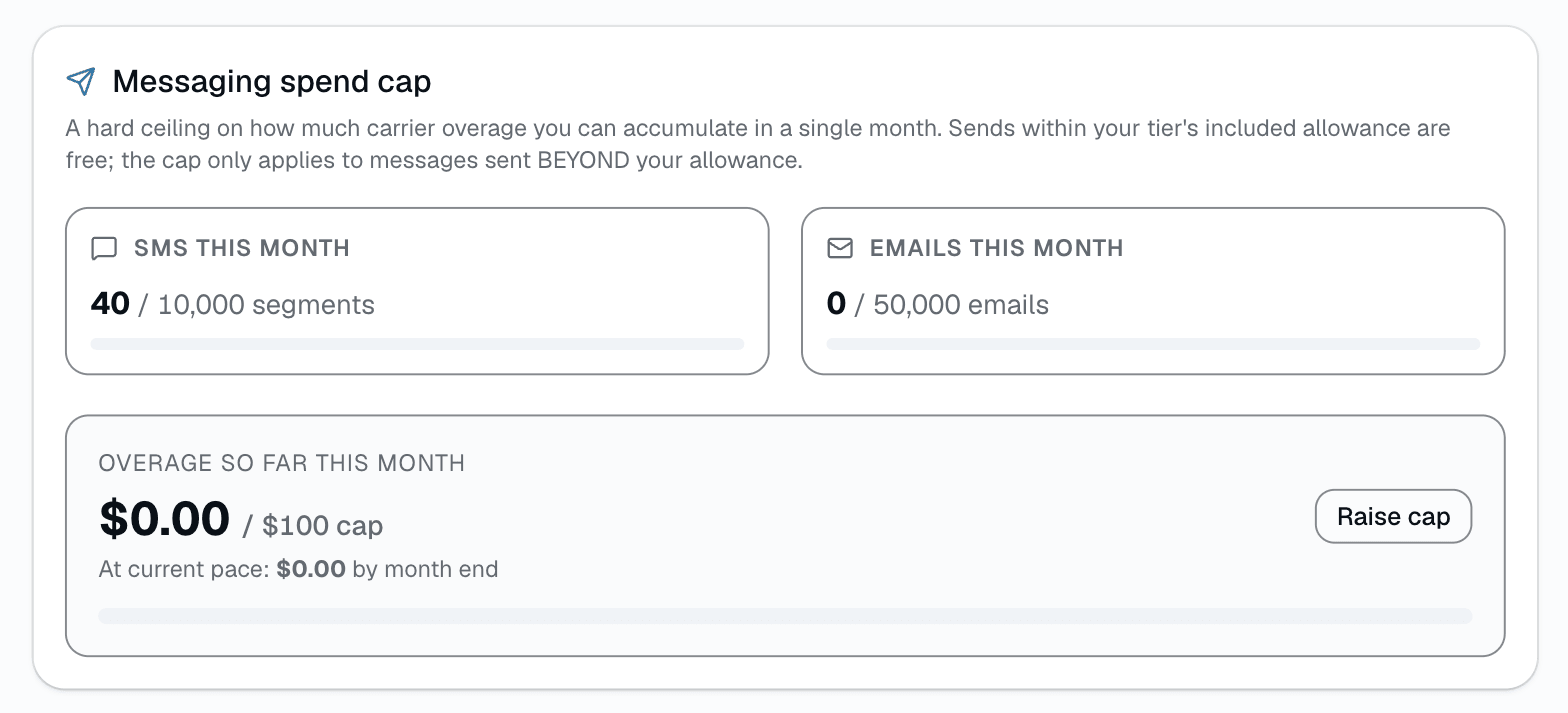
Spend cap section, Settings → Payments
Built-in staff training
New hire's first day: the app shows them where everything is.
Most software either dumps a new hire into an empty dashboard or hands them a PDF nobody reads past page one. SalesThumb's Training Wizard is built into the product itself: a role-matched set of short tours a technician, front-desk hire, manager, or HQ operator can start the moment they log in. Some steps just explain a screen; others spotlight a real button and don't advance until the person has actually clicked it. Progress is saved automatically, so a tour interrupted at step 3 picks back up at step 3 — not step 1 — whenever they return.
- Role-matched tours for 9 roles today — shop owner, manager, technician, front desk, service writer, HQ operator, franchise sales, org viewer, and super admin each see only the tours built for them
- Live spotlight, not a slideshow — "tour" steps highlight the actual UI element on the actual page, navigating there automatically if needed
- "Try it" steps require the real action — an "I did it" button advances the tour only after the person performs the step themselves; nothing is auto-detected
- Resumable — progress (current step, started/completed/skipped) is saved per person, so leaving mid-tour and coming back continues exactly where they left off
- Two entry points: a soft, dismissible banner that offers any not-yet-started tour on the pages it's relevant to, and a permanent /learn hub to start, reset, or skip any tour for your role at any time
- Steps can be gated to a specific permission — a step covering how to issue a refund only appears to someone who can actually issue refunds
What this looks like in a shop
Illustrative scenario: a shop hires a new technician who logs in for the first time and sees a small banner offering the Technician tour. She starts it — a few intro cards on what her role can see, then a "tour" step spotlights the calendar and walks her through today's jobs, then a "try it" step has her actually open a real job and mark a status change before the tour advances. She gets pulled away mid-tour for an install; when she comes back that evening, /learn shows the tour exactly where she left it. She finishes it over her first two shifts instead of one overwhelming session.
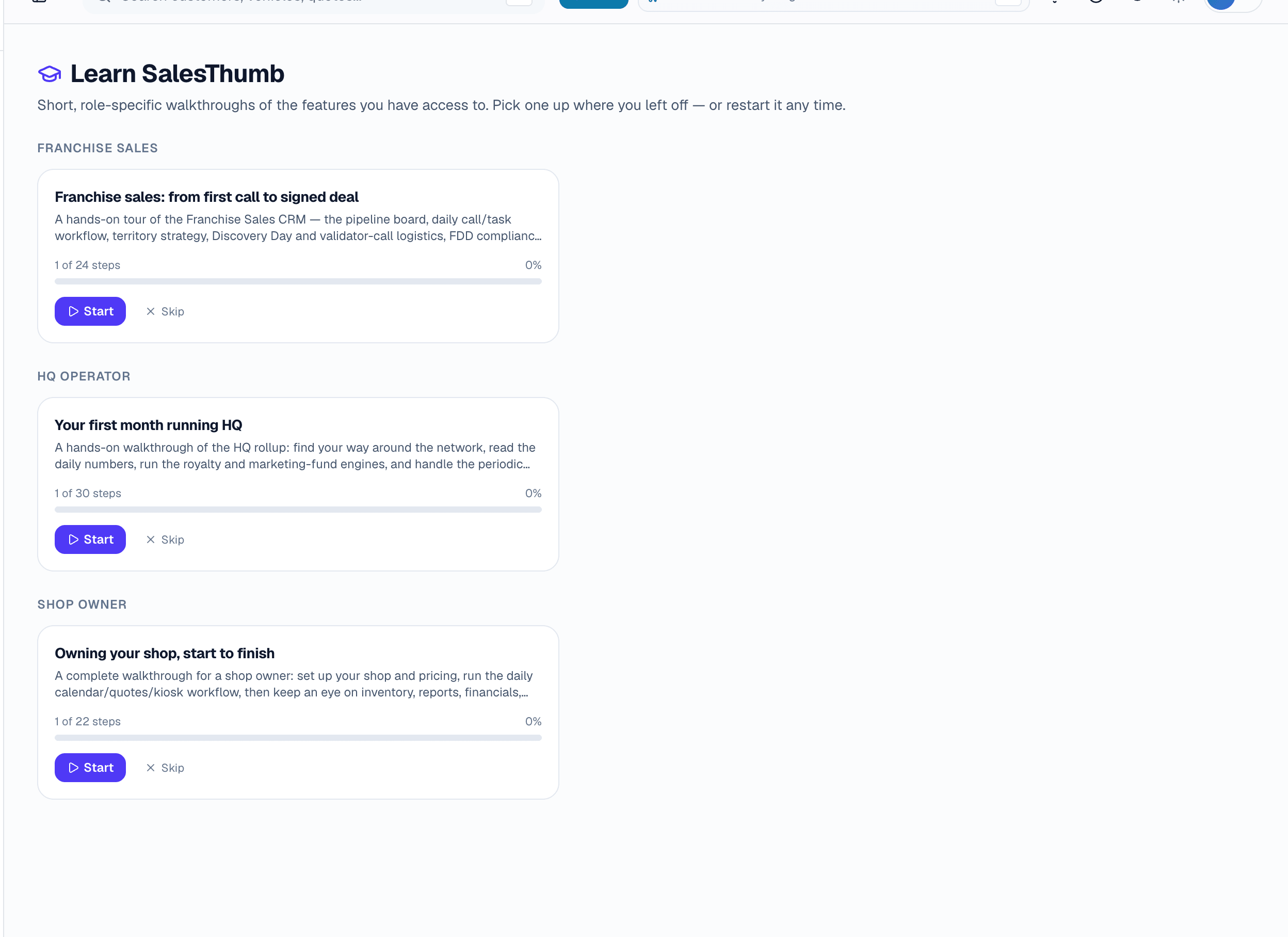
The /learn hub
More in run your shop
Supporting tools that round out the pillar.
Purchase orders + vendors
1-click POs from low-stock list, vendor catalog, receive-against-PO flow. Receive partial shipments with bulk-edit grid.
Installer leaderboard + commissions
Every job is credited to the installer or bay it's assigned to. Leaderboard, commission entries, payout tracking — installers see their own earnings tab.
Yearly tax filing pack PDF
One PDF with total revenue, sales tax collected, tips, and refunds — broken down by month and by payment method — ready to hand to your accountant.
State tint-law compliance + waivers
Every state's window-tint VLT limits built in. The quote builder flags front/back/windshield darkness that's over the legal limit, and the customer's sign-off is captured with their invoice signature — your legal cover, on file with the job.
QuickBooks invoice push
Connect QuickBooks Online and push paid invoices one-way to your books — the matching customer is created automatically. No month-end CSV export marathon for the accountant. (Two-way sync is on the roadmap.)
Staff time clock + PIN kiosk
Staff clock in and out from the app or a PIN-based front-desk tablet. Hours roll into payroll-ready timesheets your accountant can run straight off.
Other pillars
The full feature taxonomy.
AI that does the busywork
AI built in
15 features
What your customers see
Customer experience
16 features
One app for techs, sales and customers
Mobile app
8 features
Fill the calendar
Growth
8 features
Run more than one shop
Multi-location & franchise
12 features
Selling new franchise units
Franchise Sales
6 features