Today
Techs open the app to today's jobs: what's in progress now, what's up next, and a live timer on each job.
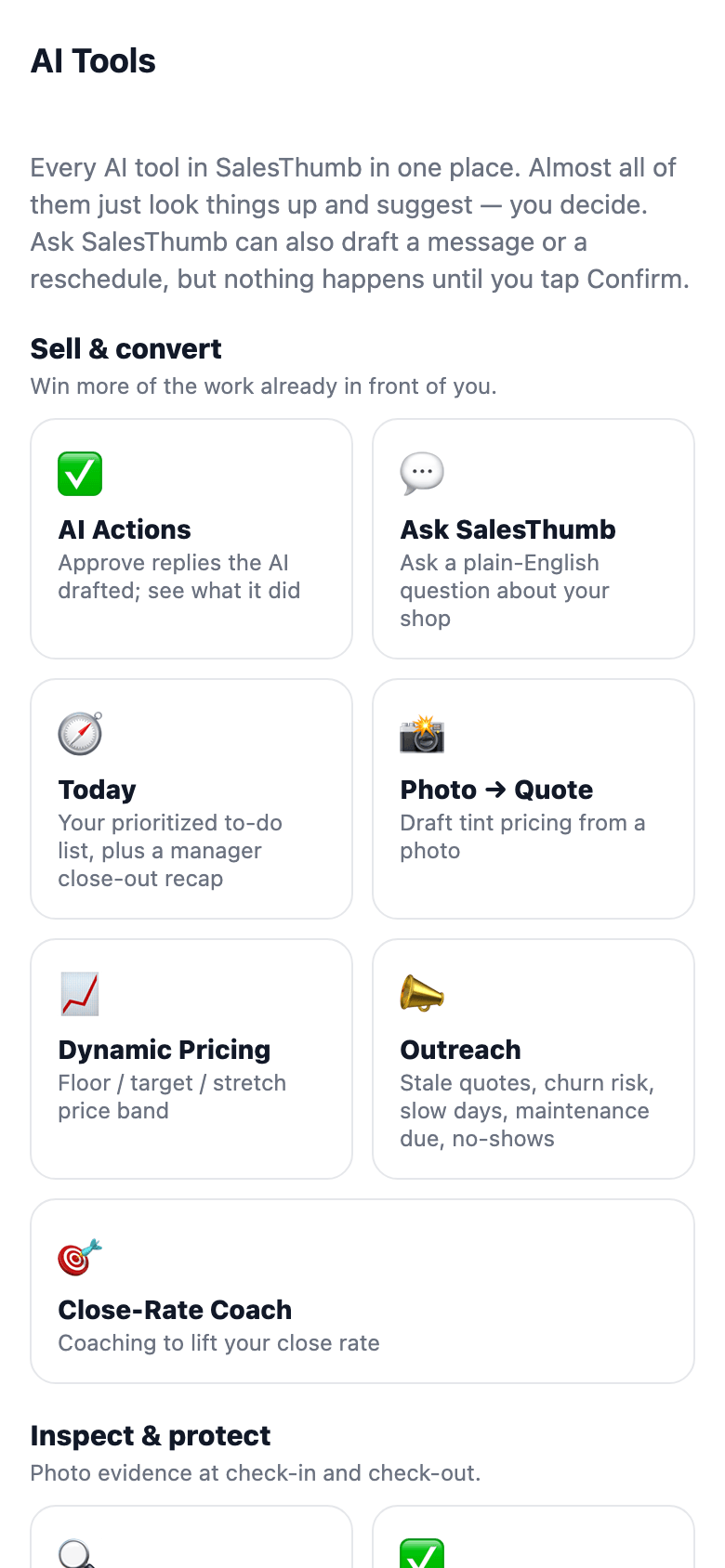
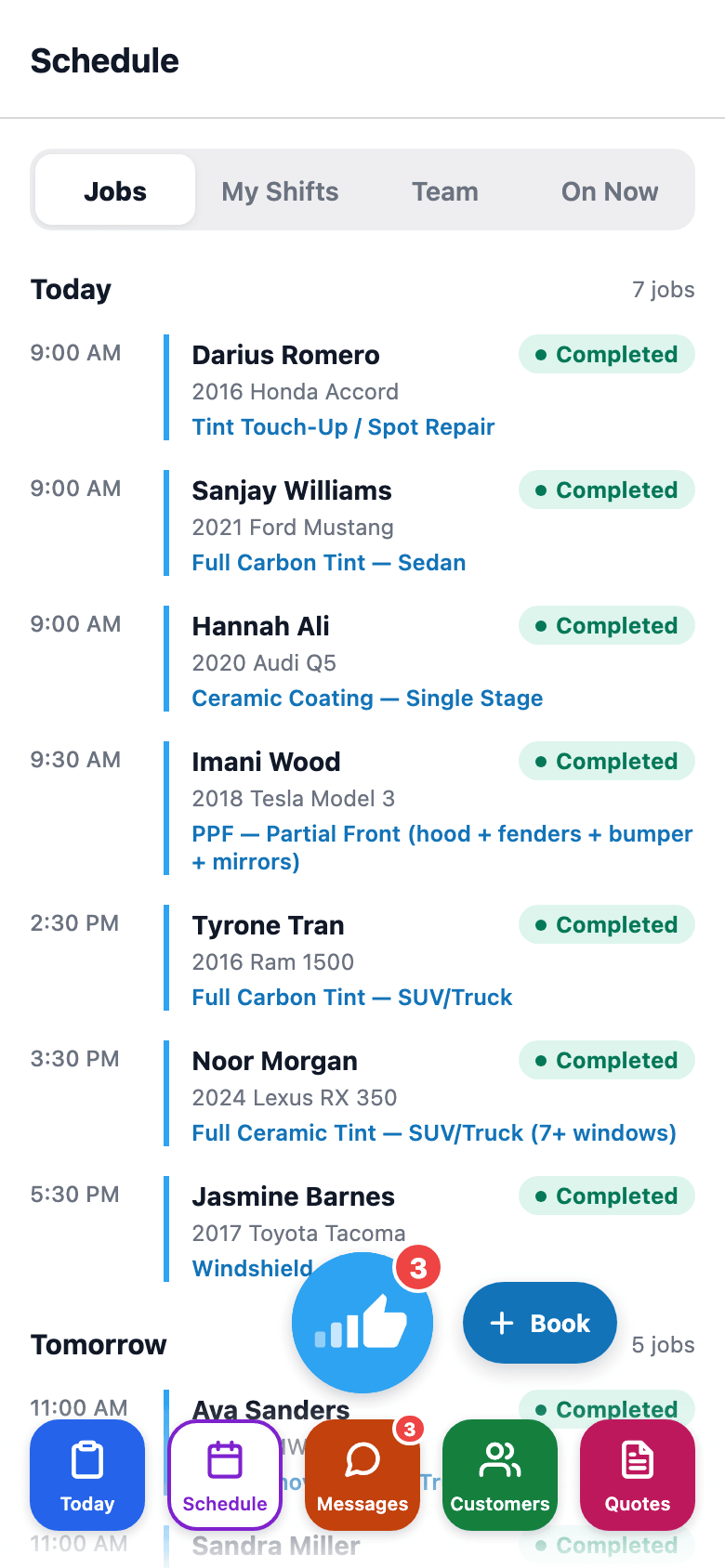
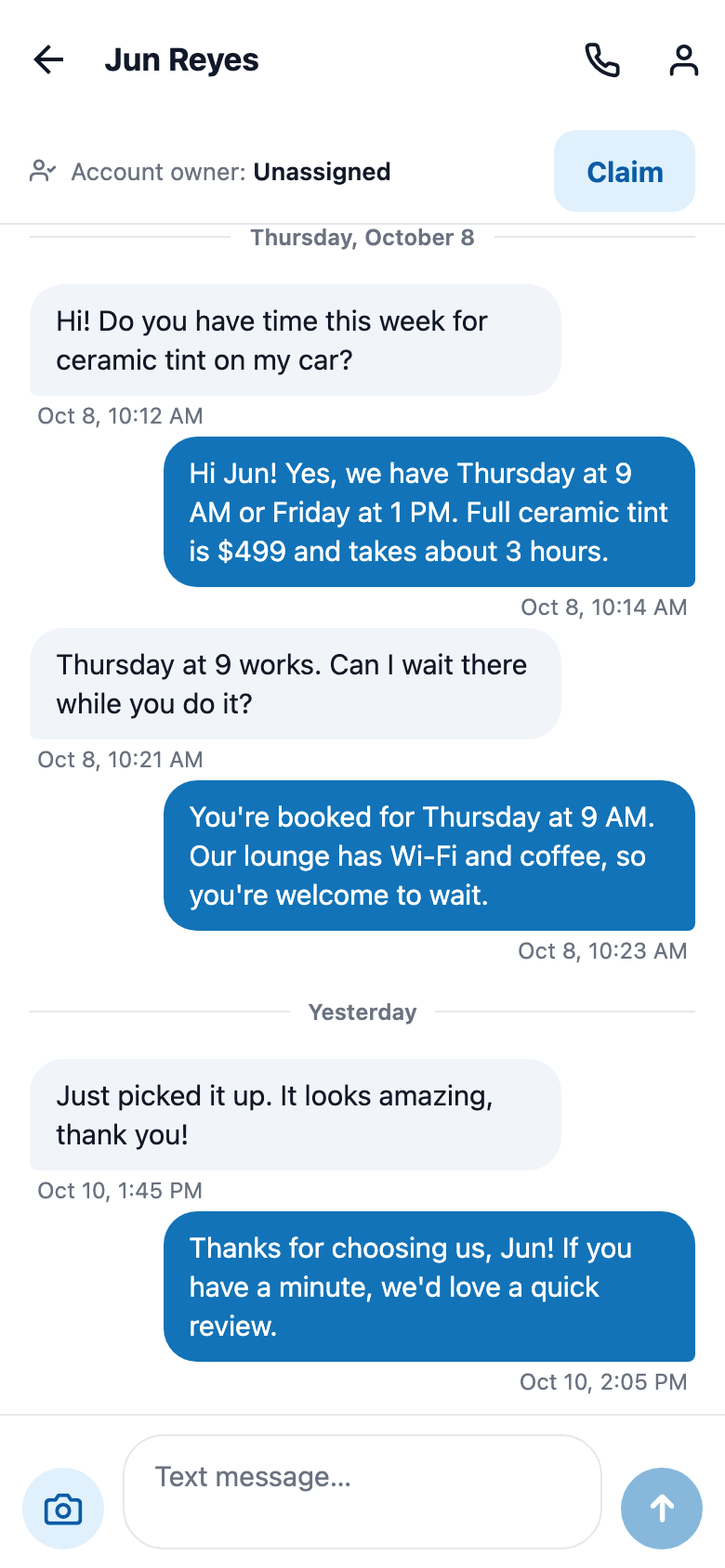
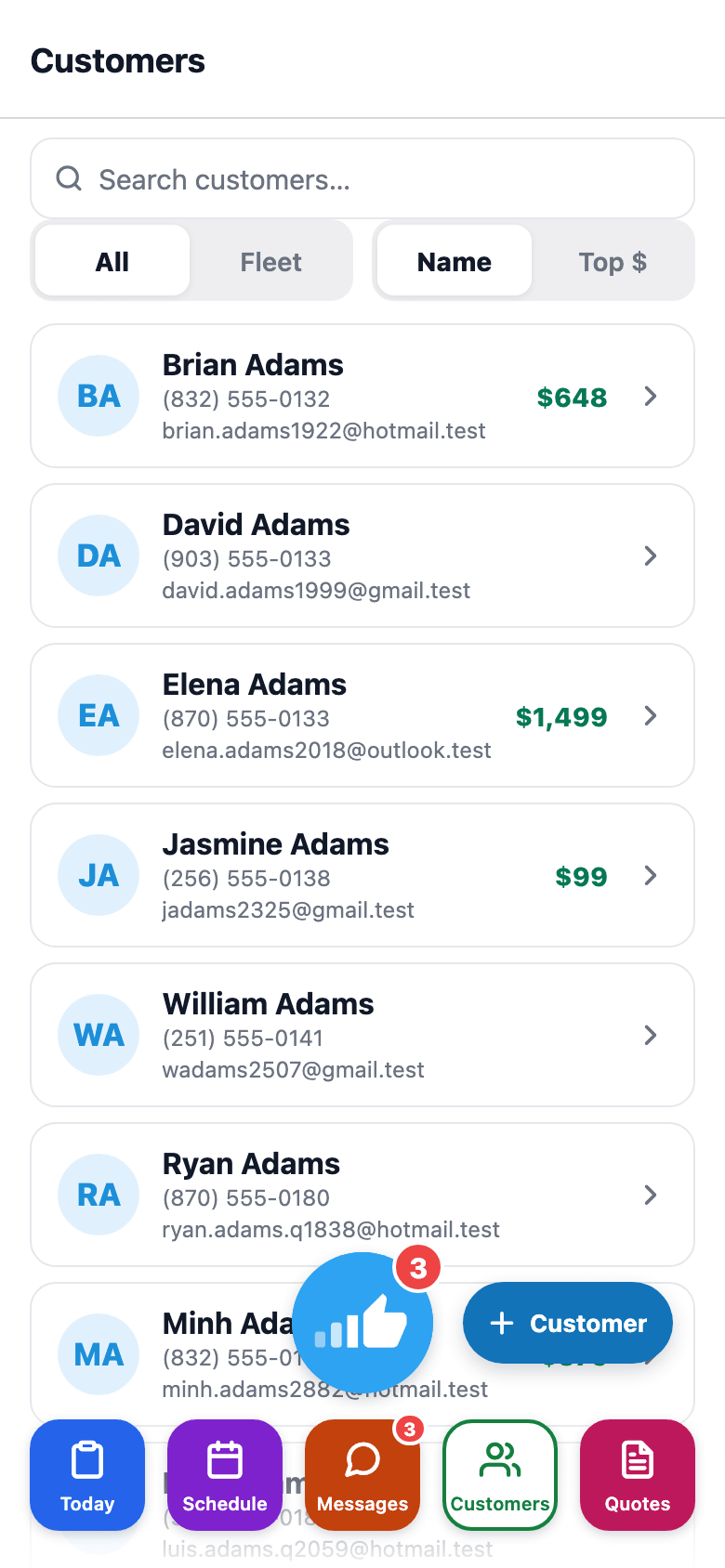
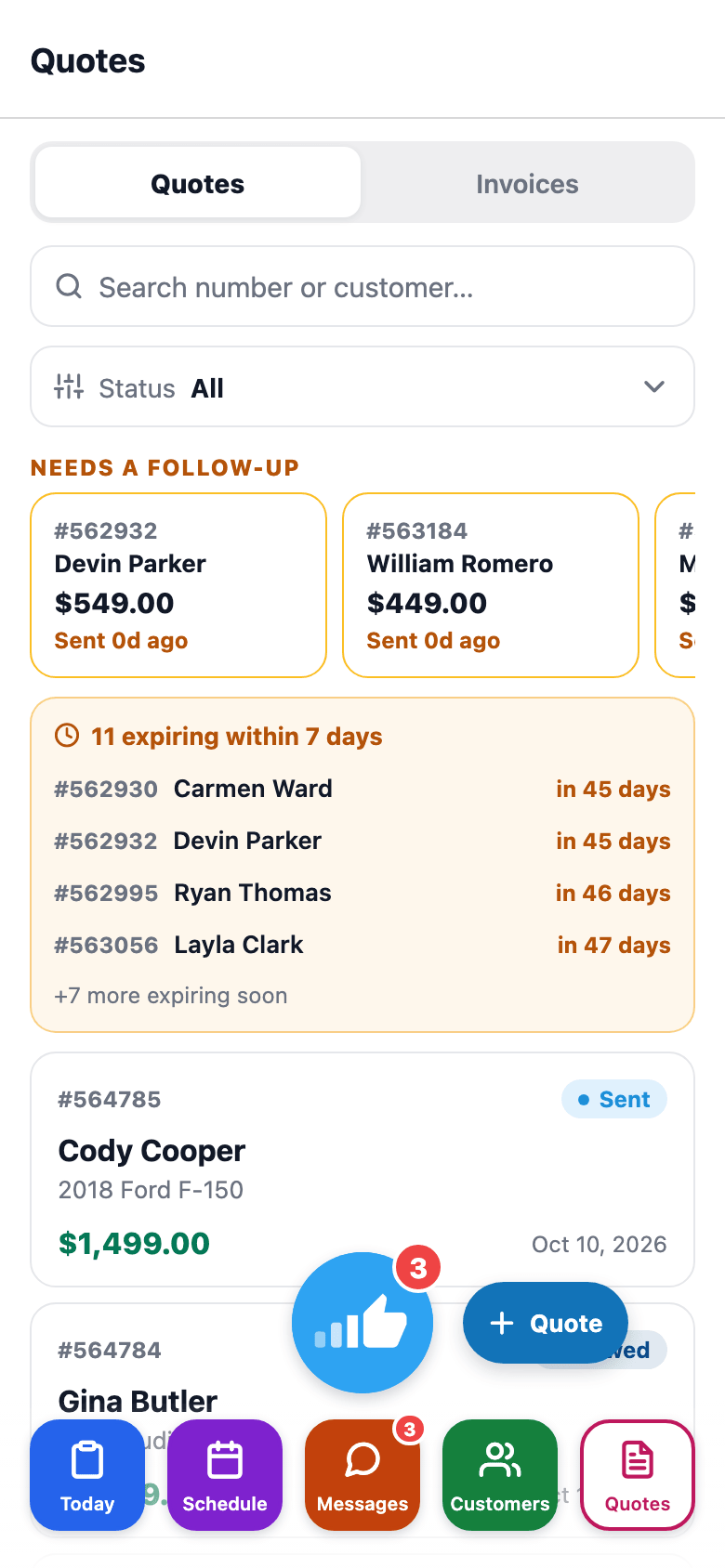
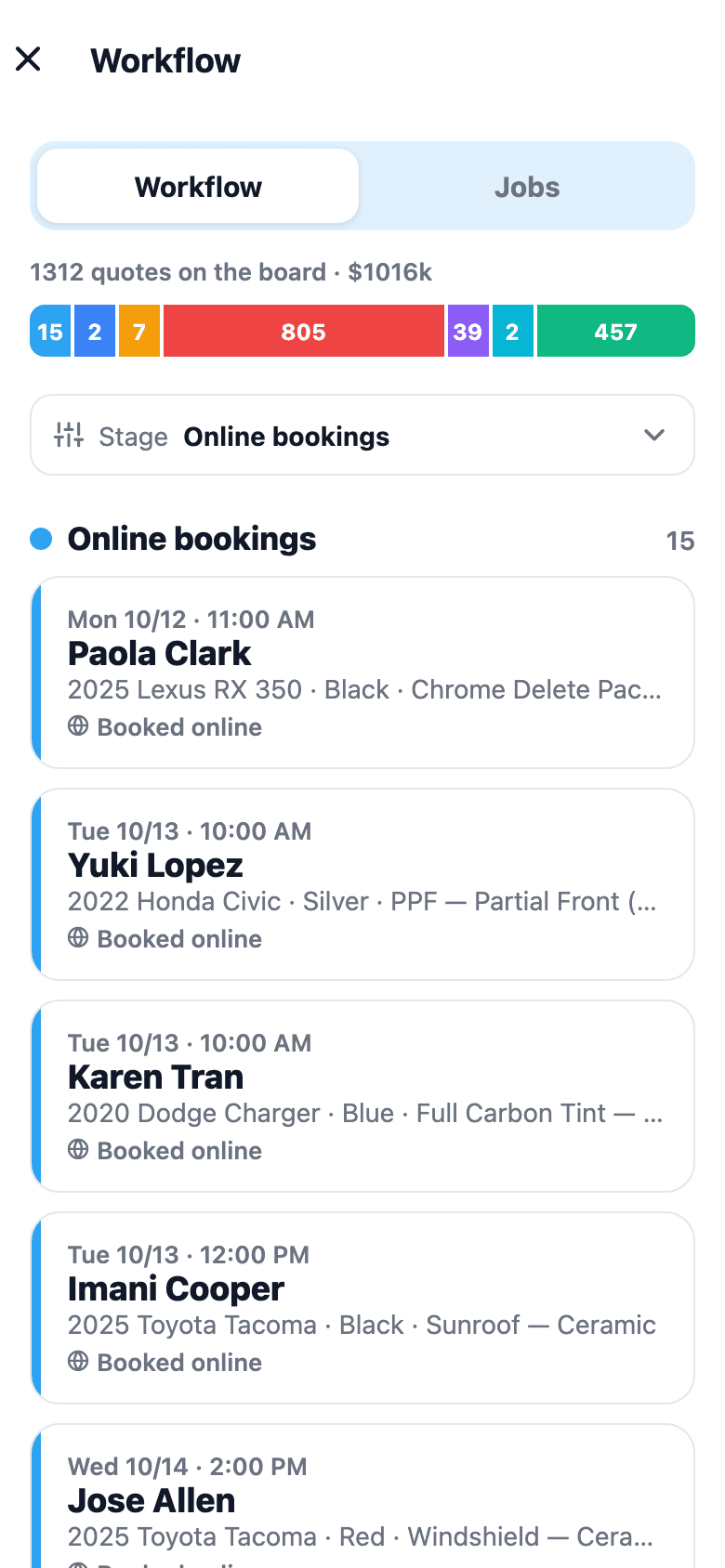
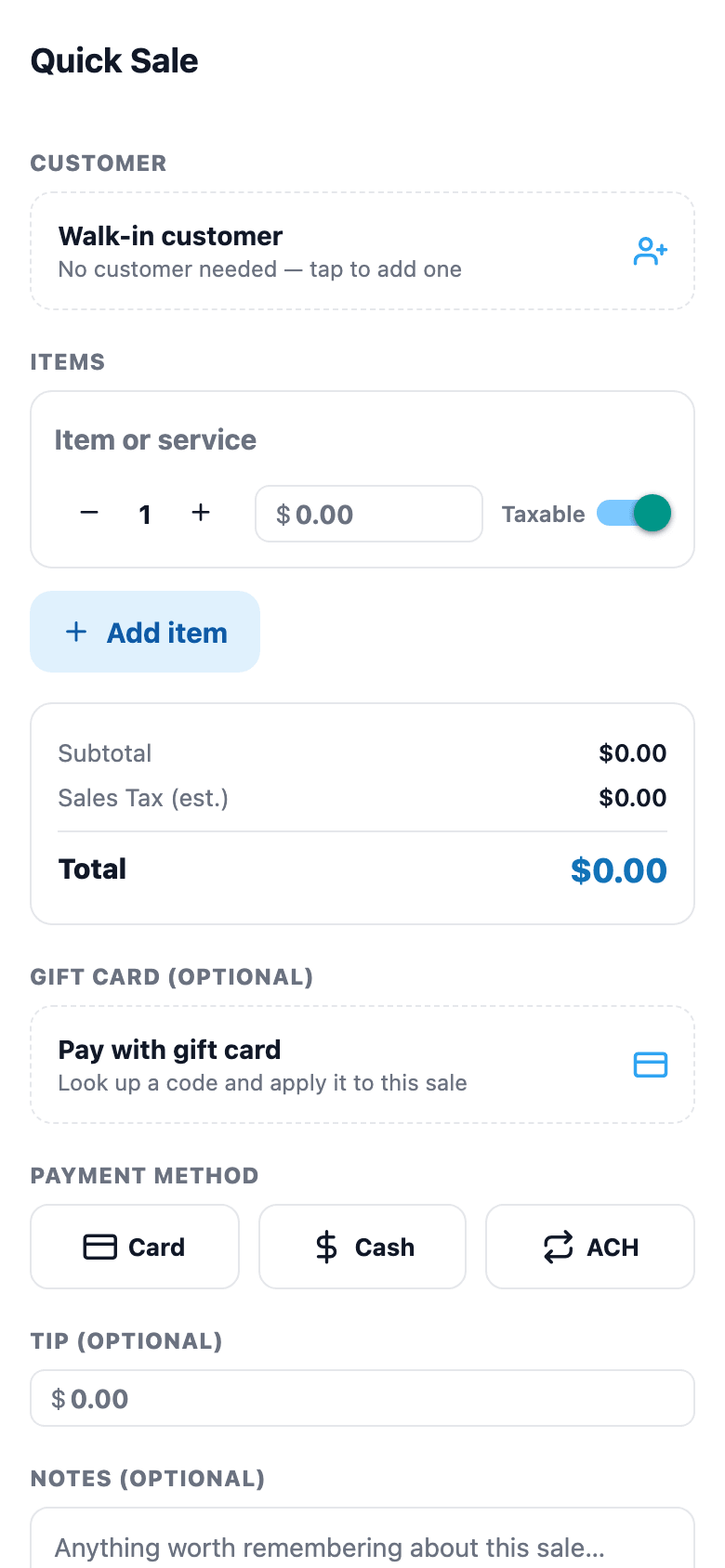
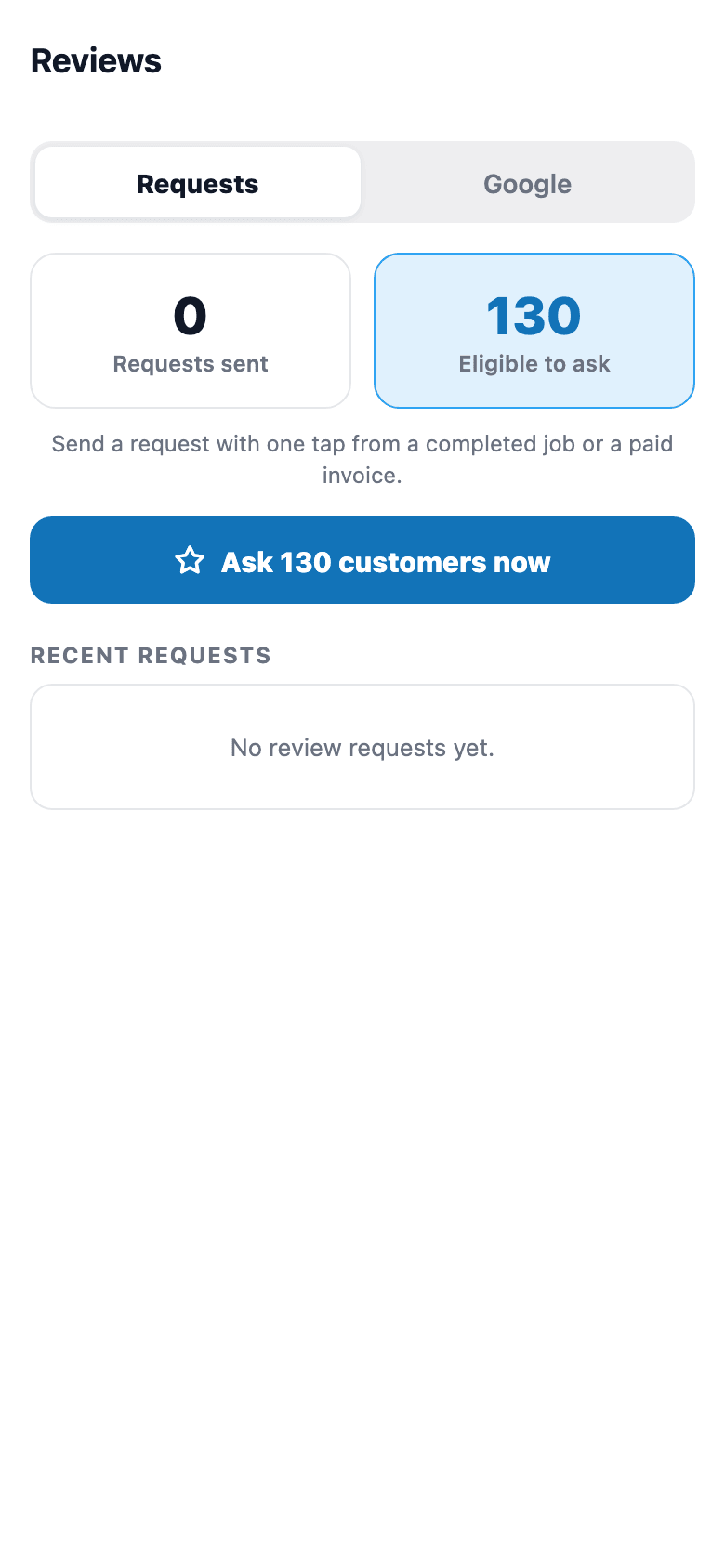
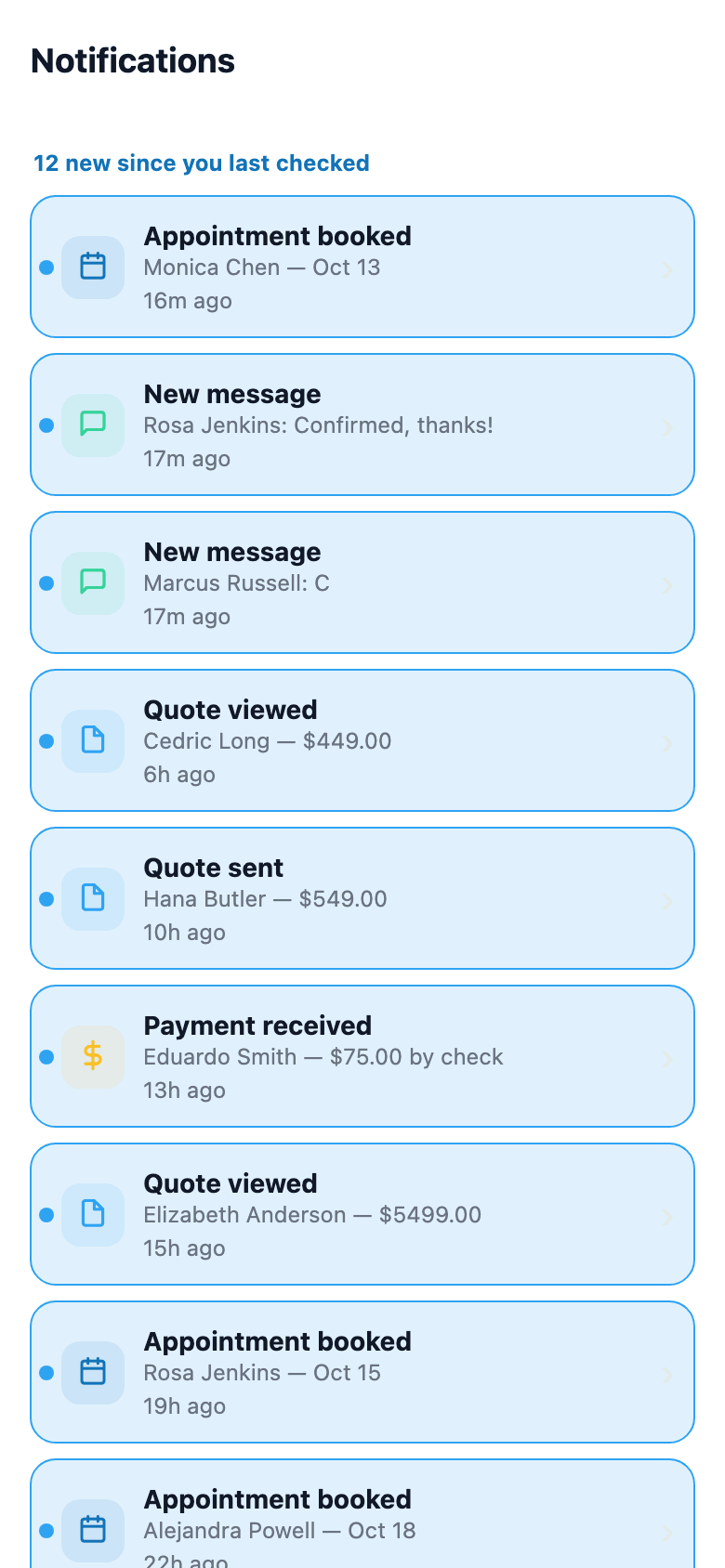
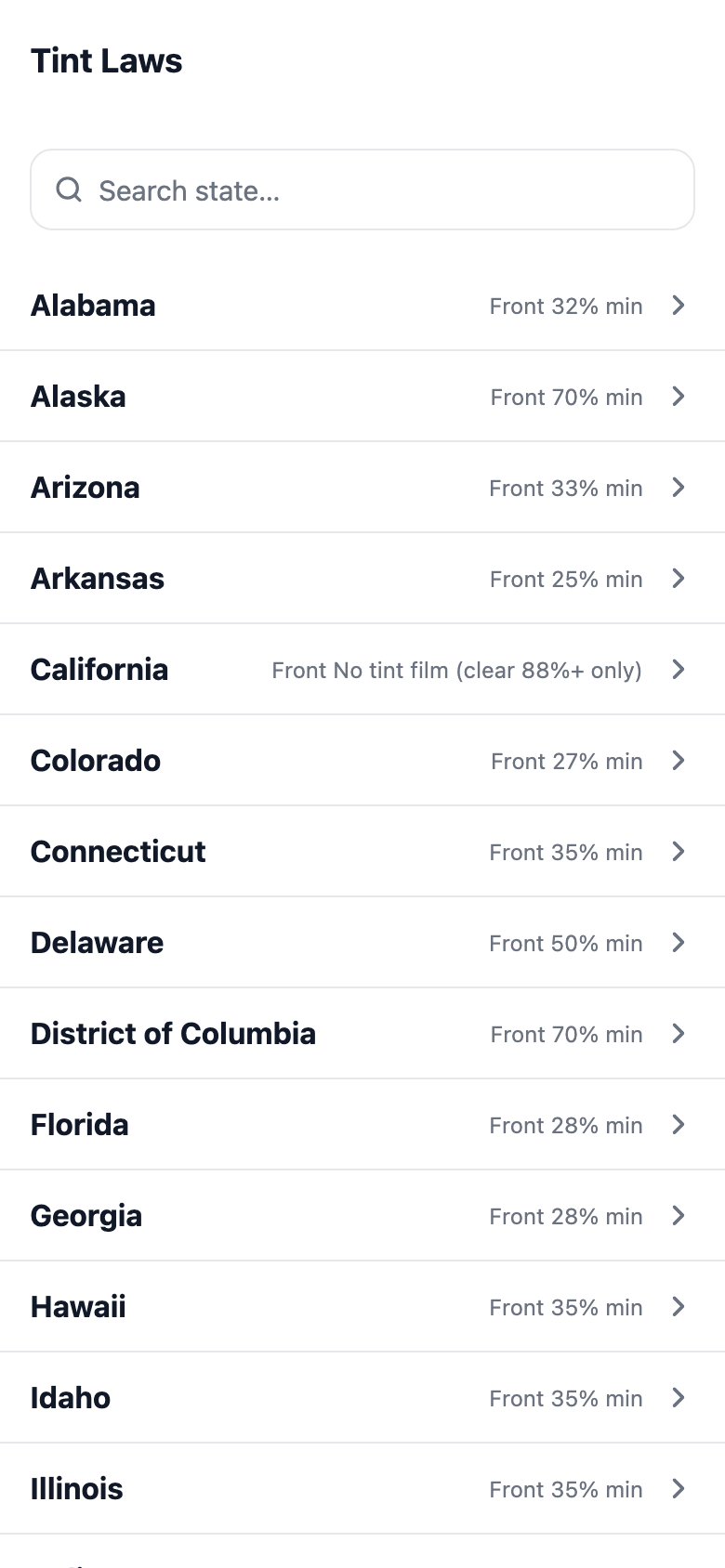
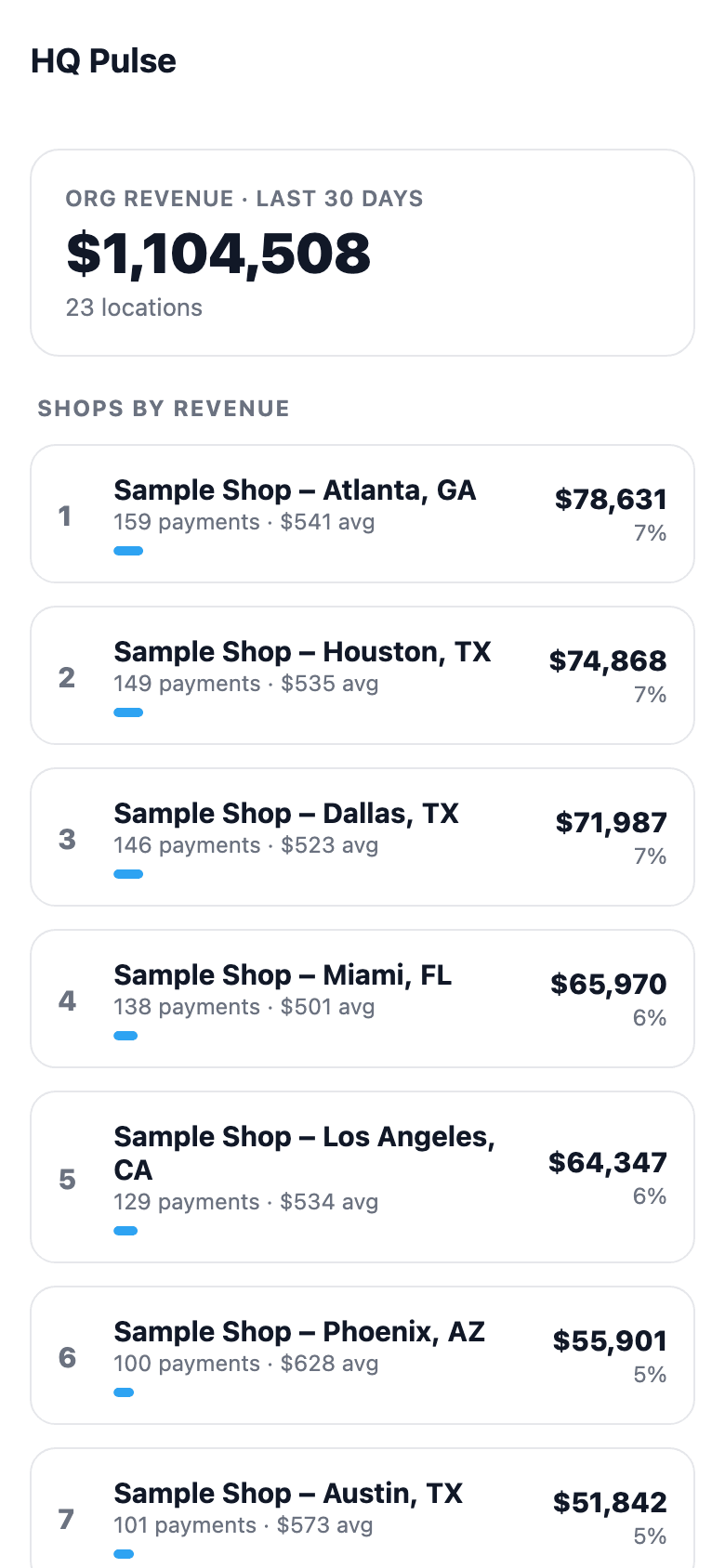
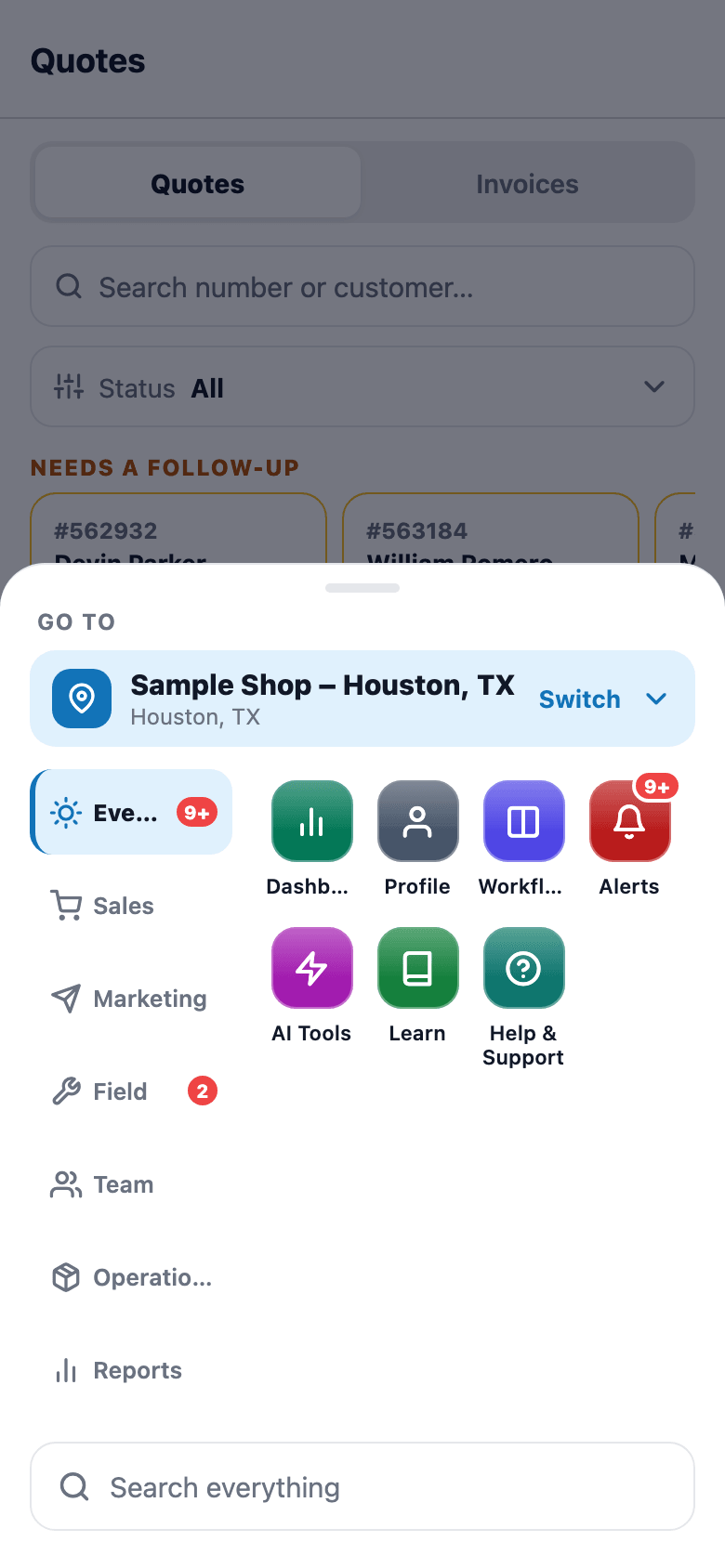
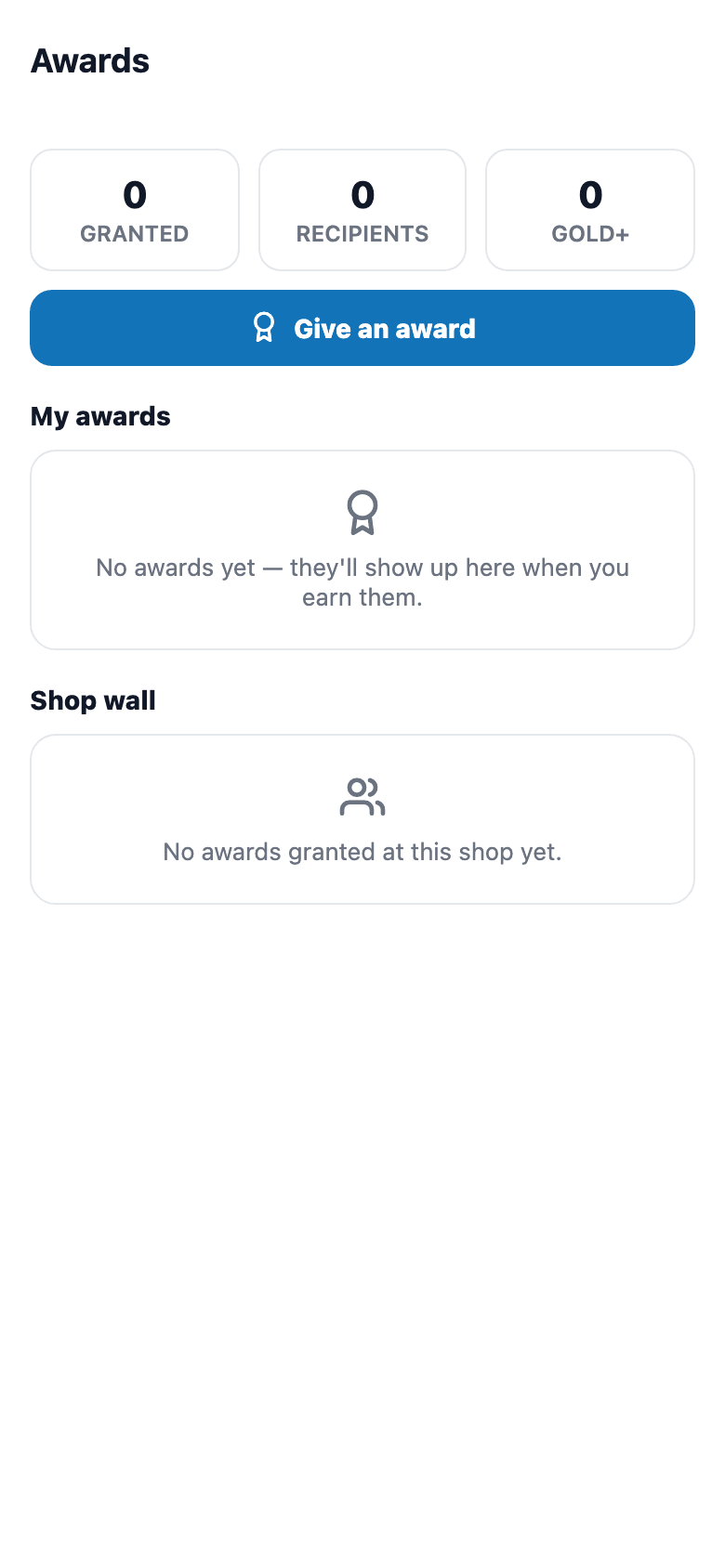
Screenshot tour of the SalesThumb mobile app: Today, VIN scan, Walkie, AI tools, Schedule, Messages, Customers, Quotes, Workflow, Quick sale, Reviews, Notifications, Tint laws, HQ Pulse, Go to menu, Awards, Customer login, Staff login.
Customer mobile app — login flow
Your customers log into the same app your team uses. Name + phone. Done.
The all-in-one mobile app means your customer base doesn't need to download a second app to track their job or check their warranty. They open SalesThumb, type their name + phone, get a 6-digit SMS code, and land on a portal showing only their stuff. Staff get a different login (email + password) and each employee's mobile role (installer, sales, both or none) decides which screens appear. No app-switching, no second download, no separate brand.
- Passwordless SMS-code login (6 digits, 10-min TTL, 5-attempt lockout)
- Re-uses the existing 30-day customer portal token format
- Multi-shop disambiguation: active shops first, then the name hint, then the oldest matching record
- Phone numbers matched the same way as incoming customer texts
- Enumeration-safe: requestCode always returns ok:true regardless of phone match
- 3-codes-per-hour rate limit per phone
What this looks like in a shop
Illustrative scenario: Sarah just got her Tesla tinted at Sample Shop LLC. The shop rang her up, she paid via pay link in the lobby. Two days later she remembers Mike said something about checking her warranty in the app, but she lost the SMS link. She downloads SalesThumb, taps 'I'm a customer', types Sarah Chen + 555-0142, gets a text with a 6-digit code, and lands on her account with the appointment history and the warranty cert for her Tesla. No password, no support call to the shop.
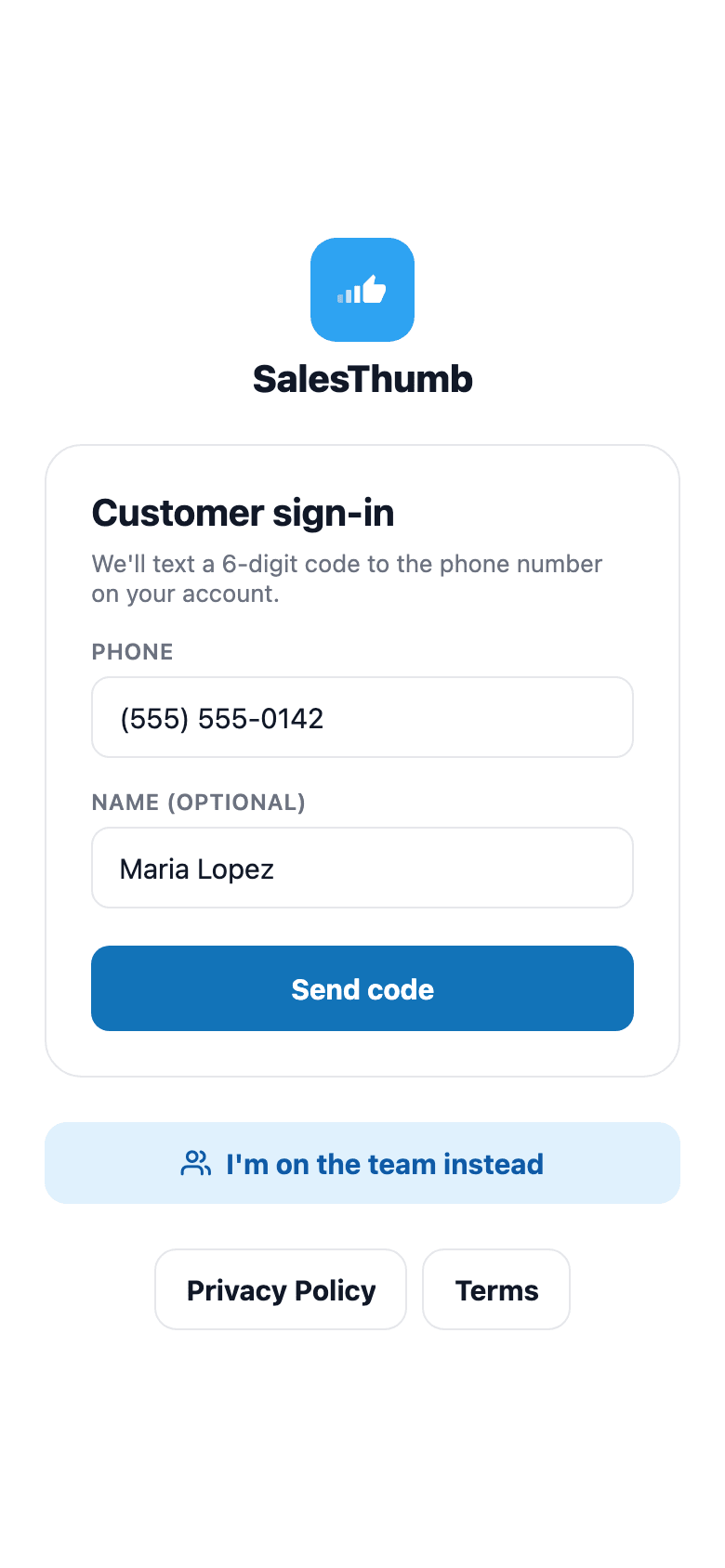
Customer login flow
Mobile app — staff sign-in
Your team's login. Separate from your customers', on purpose.
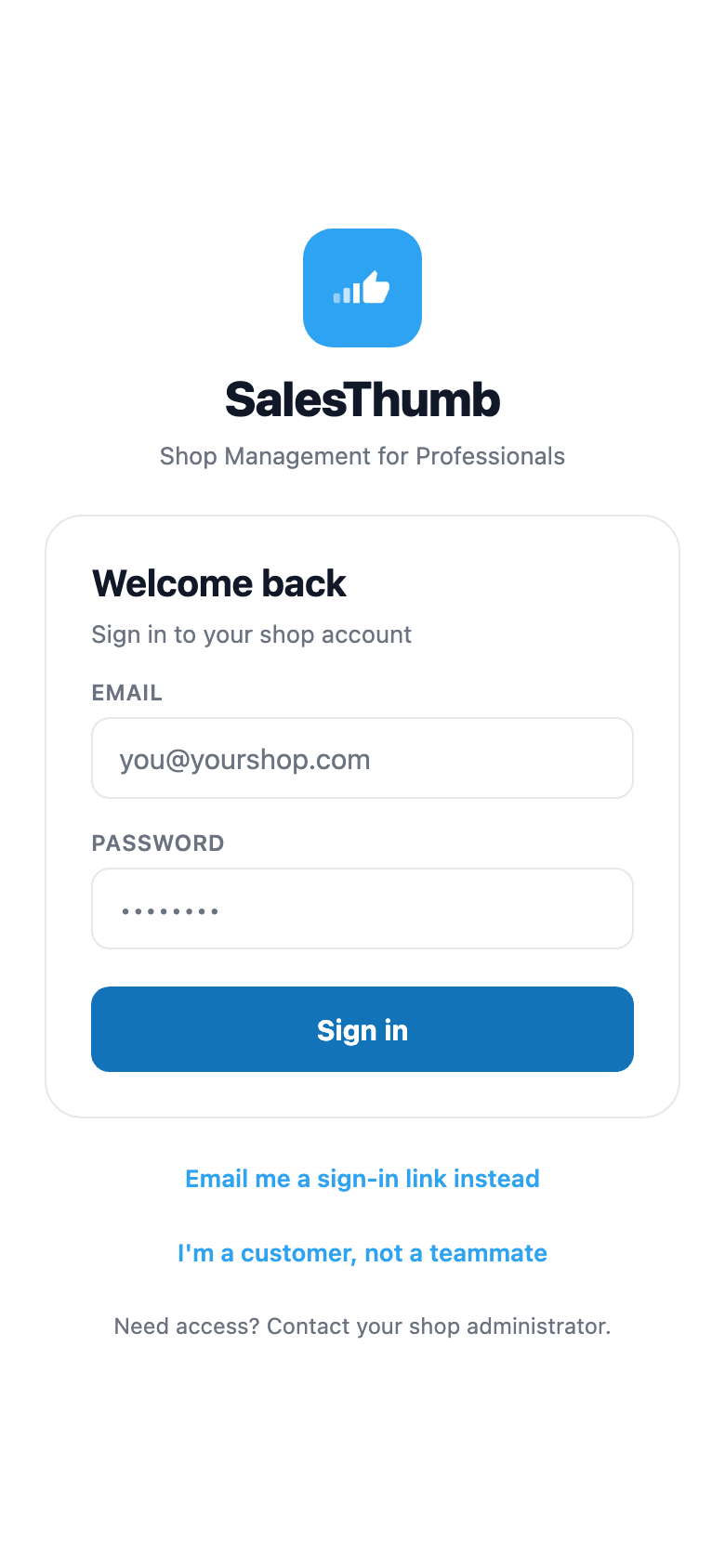
Staff and customers share one app, not one login. Techs and owners sign in with the email + password they already use on the web dashboard — same account, same permissions, no second set of credentials to manage. The sign-in is stored securely on the phone, so the app doesn't ask again until the session expires or someone signs out.
- The same email + password account as the web app
- Sign-in stored securely on the phone, encrypted
- Stays signed in until the session expires or they sign out
- Same role + permission model as web — no separate mobile permission set
- Kept separate from the customer sign-in, so one phone can hold both
What this looks like in a shop
Illustrative scenario: Marcus starts his shift, opens SalesThumb on his phone, and signs in with the same email + password he uses at the front-desk computer. He doesn't touch the login screen again for weeks — the app stays signed in through restarts and dead batteries, and after a mid-month phone swap he signs in once on the new device with the same credentials. If he ever needs to check his own warranty as a customer, that's a completely separate flow with its own session — the two never collide.
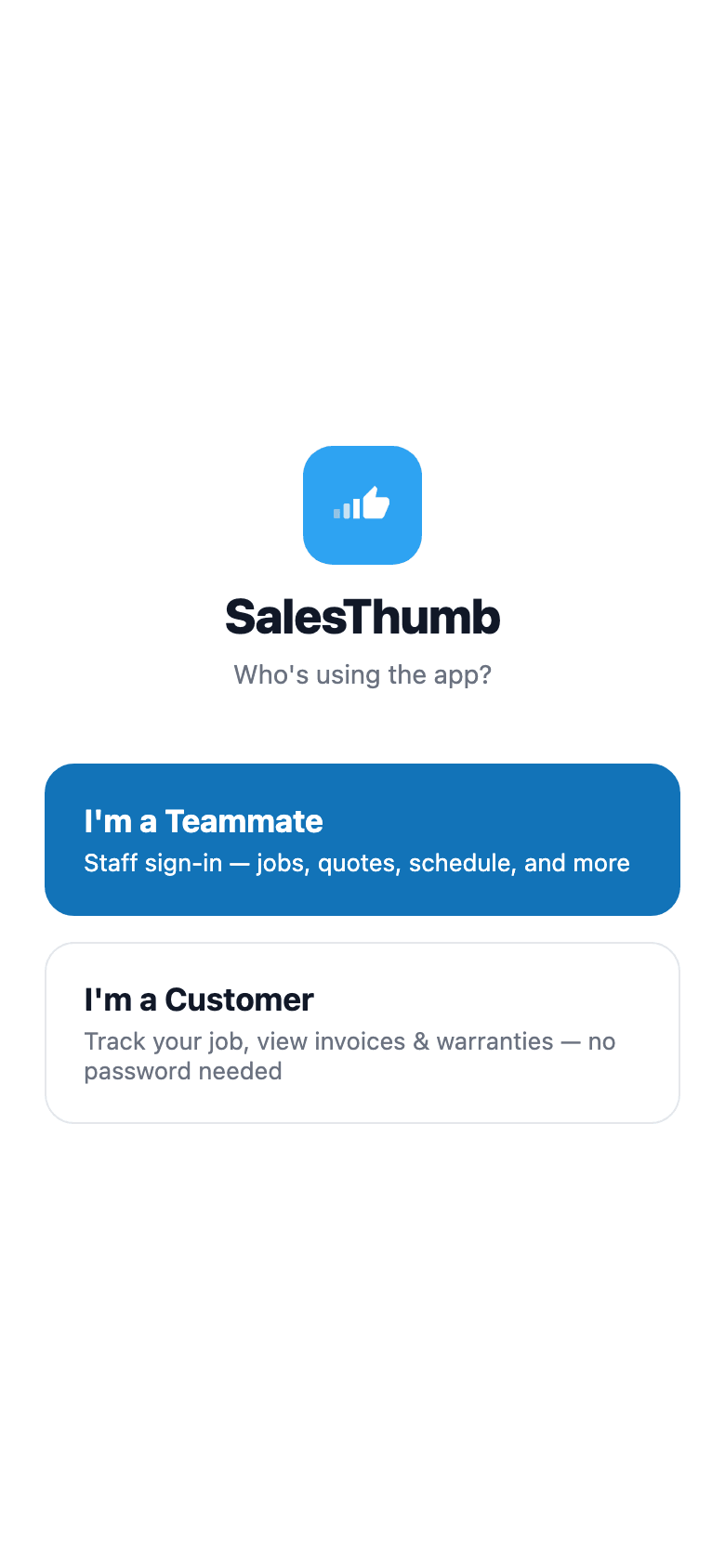
“Who's using the app?” comes first
Mobile app — access control
One app. Everyone's home screen looks different.
A tech and a salesperson shouldn't see the same tab bar — one needs today's jobs and the schedule, the other needs customers and quotes, and neither needs the owner's Dashboard cluttering their menu. SalesThumb mobile gates its whole navigation on two fields already set per employee: mobile role decides field access (Today/Schedule for installers, Customers/Quotes for sales), and the shop's membership role decides manager access (Dashboard for Owner/Admin/Manager). Owners always get the field tabs too, even if nobody bothered to set their own mobile role.
- A mobile role per employee: Installer, Sales, Both or None
- Today gated on Installer or Both (or owner); Schedule also opens for Owner / Admin / Manager
- Customers + Quotes gated on Sales or Both (or owner)
- Dashboard gated separately on membership role (Owner / Admin / Manager)
- Messages, More, and Profile are open to every role, always
- The Customers, Quotes, Invoices, and Dashboard screens re-check the role in the app (Today and Schedule are only hidden), and the API separately enforces shop membership and per-permission rules
What this looks like in a shop
Illustrative scenario: Priya works the sales counter — her mobile role is Sales, so her app opens to Customers and Quotes, no Today/Schedule clutter. Marcus installs — his mobile role is Installer, so he sees Today and Schedule instead. The shop owner, Dana, has mobile role Both and is also the Owner, so her app shows every field tab plus the Dashboard. Nobody had to be trained on which tabs to ignore — the app just doesn't show them the ones that aren't theirs.
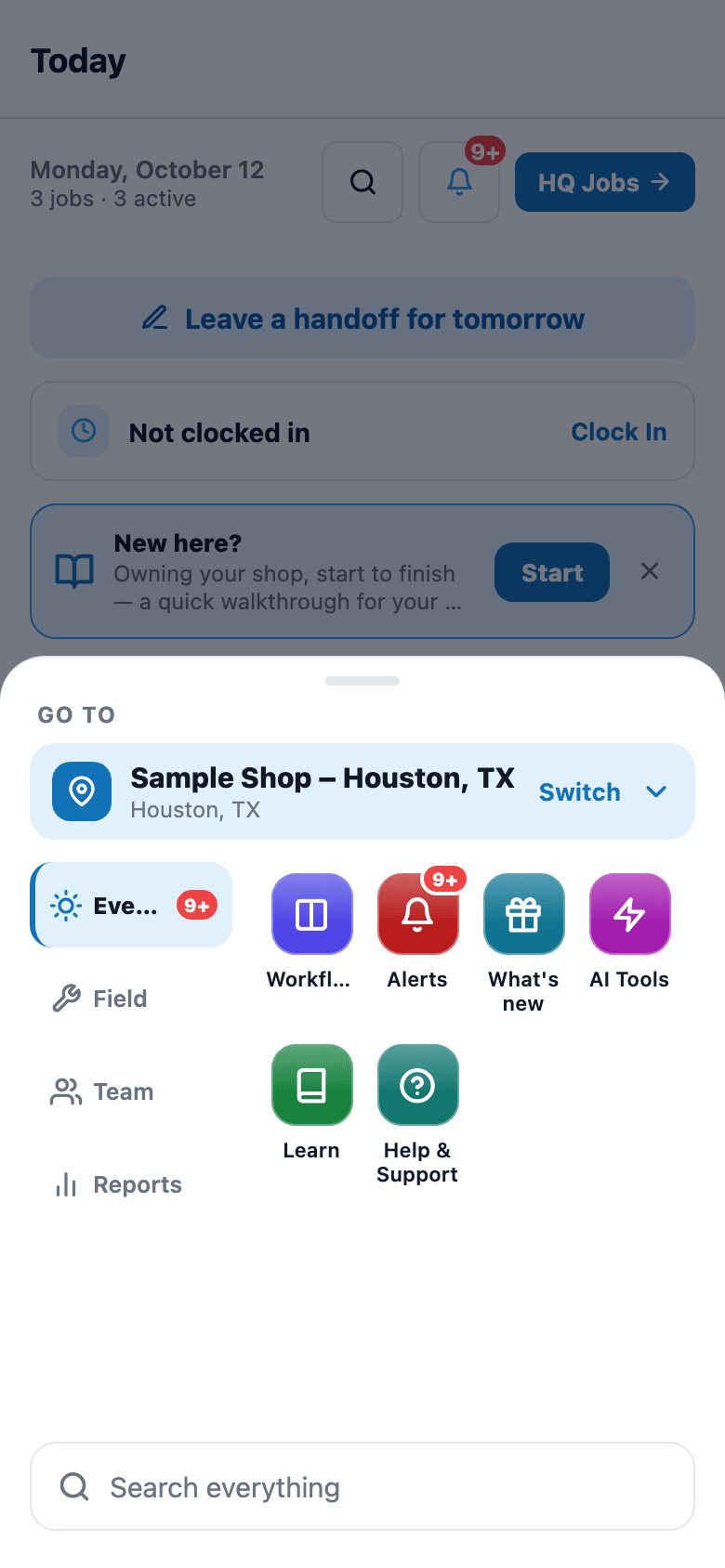
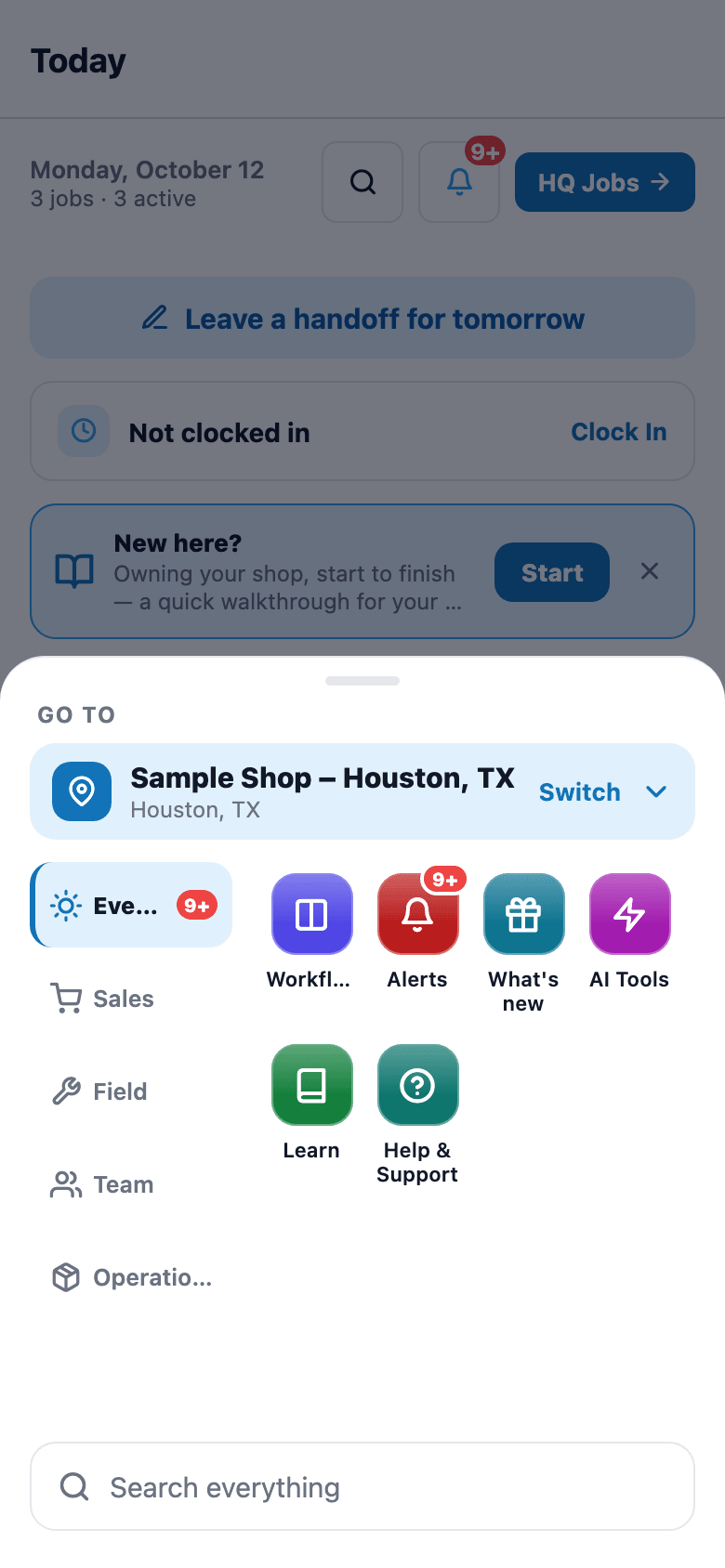
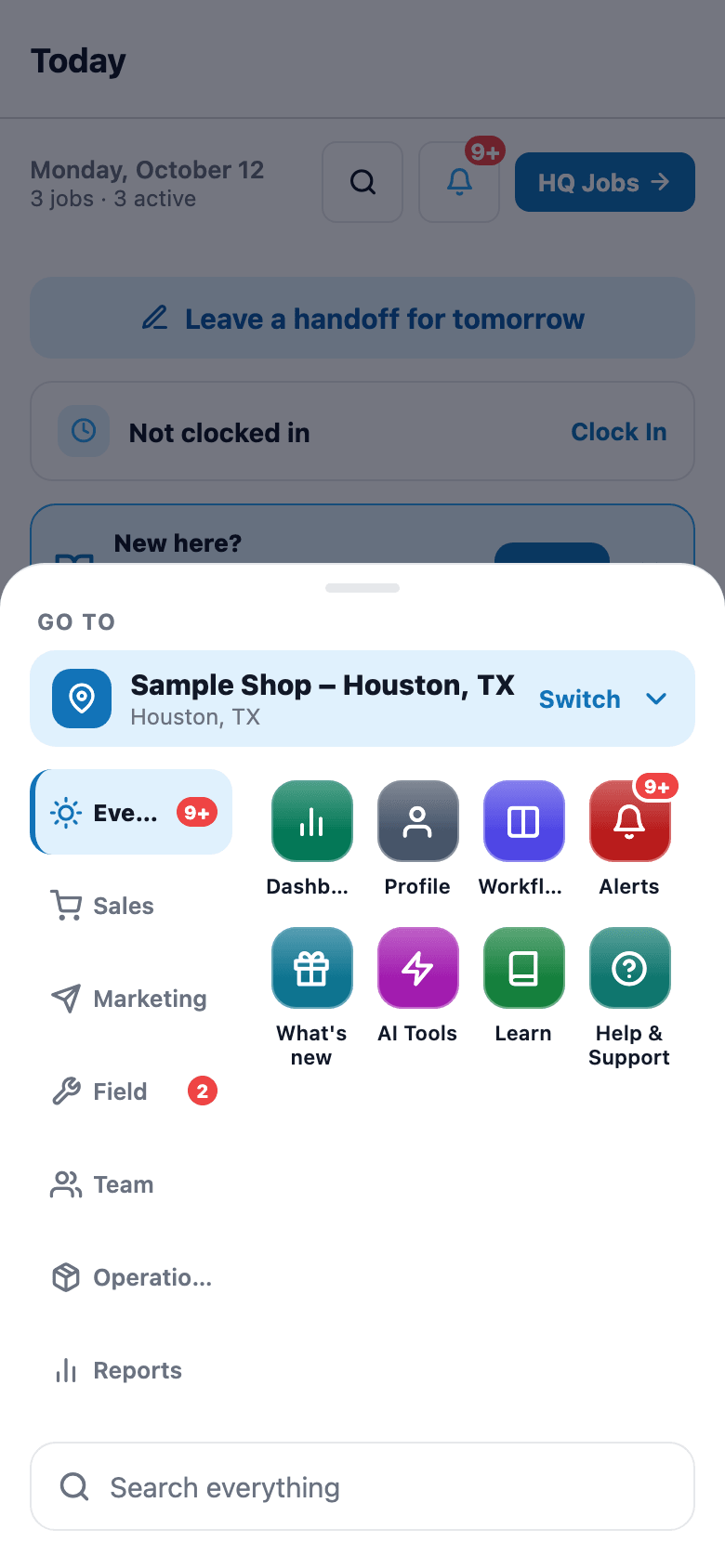
Installer, Sales, and Owner — three different menus
Installer & Customer Mobile Apps
One app for your techs. One for your customers.
Your techs aren't at a desk. Your customers aren't either. SalesThumb ships one native app — for the people doing the work and the people paying for it — that rides on the same platform your web dashboard does.
The installer side is the tech's day: clock in, today's board with bay assignments, one-tap photo capture pre-tagged to the job, and a single 'advance' button that moves a job from confirmed through checked-in, in-progress, ready, and completed — broadcasting every change straight to the front desk.
The customer side is your shop in their pocket: a live progress bar while their vehicle is in the bay, loyalty stamps, quotes waiting on their approval, invoices with a balance, and a read-only warranty wallet for every vehicle with a registered warranty.
Live now on the App Store and Google Play as the SalesThumb app with your shop's name on it; a fully white-labeled app under your own brand in the App Store is a further-out roadmap item (2026 Q4).
- Today's board with bay + service + scheduled time
- One-tap clock in / clock out / break, time recorded automatically
- Photo capture pre-tagged to the job — no album-hunting later
- Status updates flow straight to the front desk in real time
- Digital vehicle inspection with customer sign-off, autosaved locally as you go
- Installer leaderboard + tip + commission visibility (if enabled)
What this looks like in a shop
Illustrative scenario: Marco rolls in at 7:45am, opens the installer app, sees his jobs for the day with bay assignments. He clocks in, grabs his first Tesla, snaps a few before photos, and taps 'Start Job.' The front desk sees his status flip to In Progress without a single radio call. When Alicia checks the app on her lunch break, she sees the same progress bar creeping toward 100% — no call to the shop needed to ask 'is it done yet?'
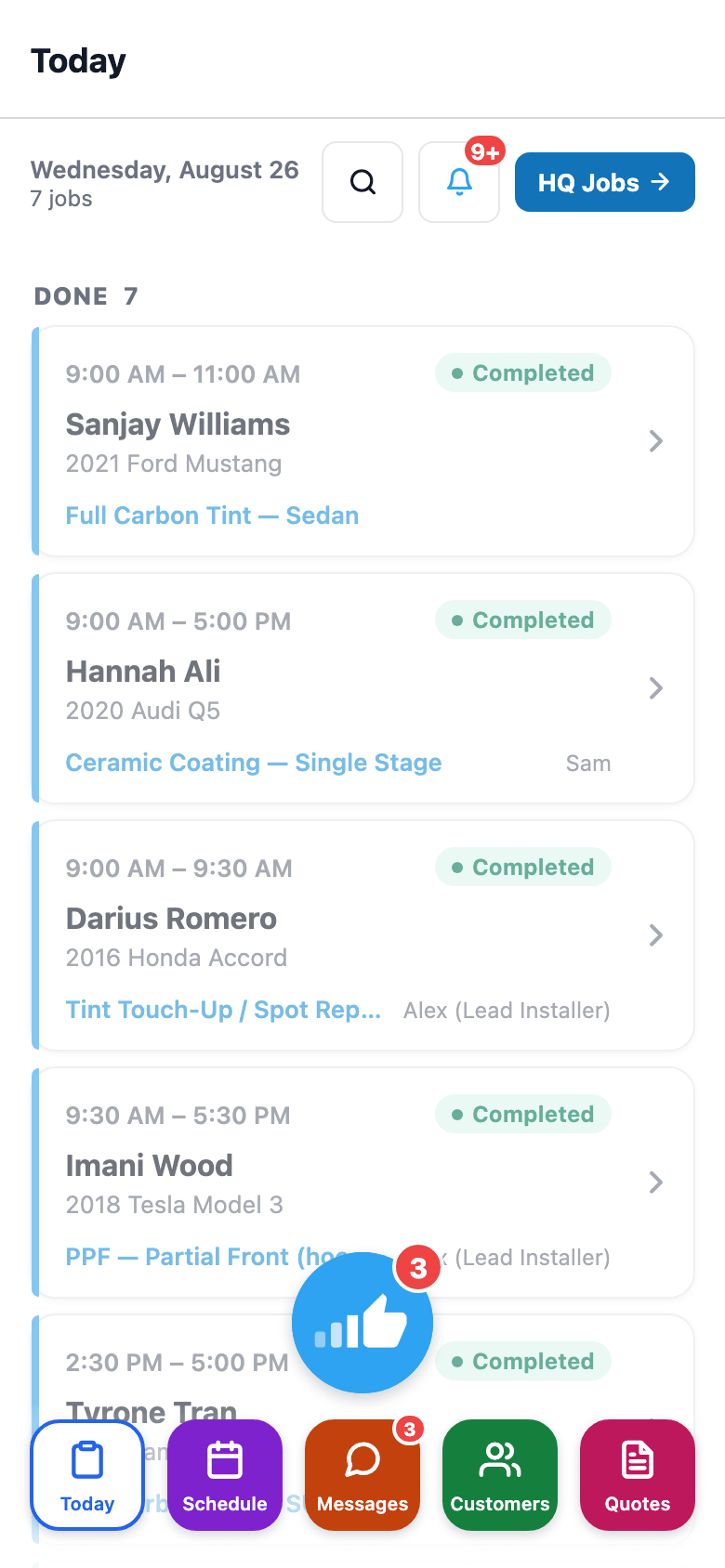
Installer home
Mobile app — vehicle lookup
Point the camera at the VIN. Skip typing 17 characters by hand.
Typing a 17-character VIN correctly while a customer is standing at the counter is a small but constant tax on every intake. SalesThumb's VIN scanner reads it with the phone's camera instead. It reads the barcode printed next to the VIN on the label right on the phone, and if it can't find one after a moment it reads the printed VIN characters instead. Every read is checked against the VIN's built-in check digit, then looked up in NHTSA's free VIN database for year, make, model, trim, and body style. Body style is the quiet payoff: it sets the vehicle's tint-law class (car vs. SUV/truck) so nobody has to pick it.
- Reads the VIN barcode (Code 39, Code 128, Data Matrix, QR, or PDF417) right on the phone
- Reads the printed VIN when there's no readable barcode (Growth plan and up, uses your AI allowance)
- Checks every read against the VIN's check digit; a mismatch waits for you to confirm or edit
- Looks up year, make, model, trim, and body style in NHTSA's free VIN database
- Body style sets car vs. SUV/truck for tint-law defaults
- Flashlight button, a Capture button to read right now, and Type it to enter the VIN by hand
What this looks like in a shop
Illustrative scenario: A customer pulls up for a same-day ceramic coat. Instead of asking for the VIN and typing it off their registration, the tech opens the scanner from the customer's page and aims at the door-jamb label. The frame turns green, the VIN checks out, and NHTSA comes back with 2023 Tesla Model 3, Sedan. The app goes straight back to the customer's page with the vehicle ready to add — no typos, and the tint-law class is already set to car.
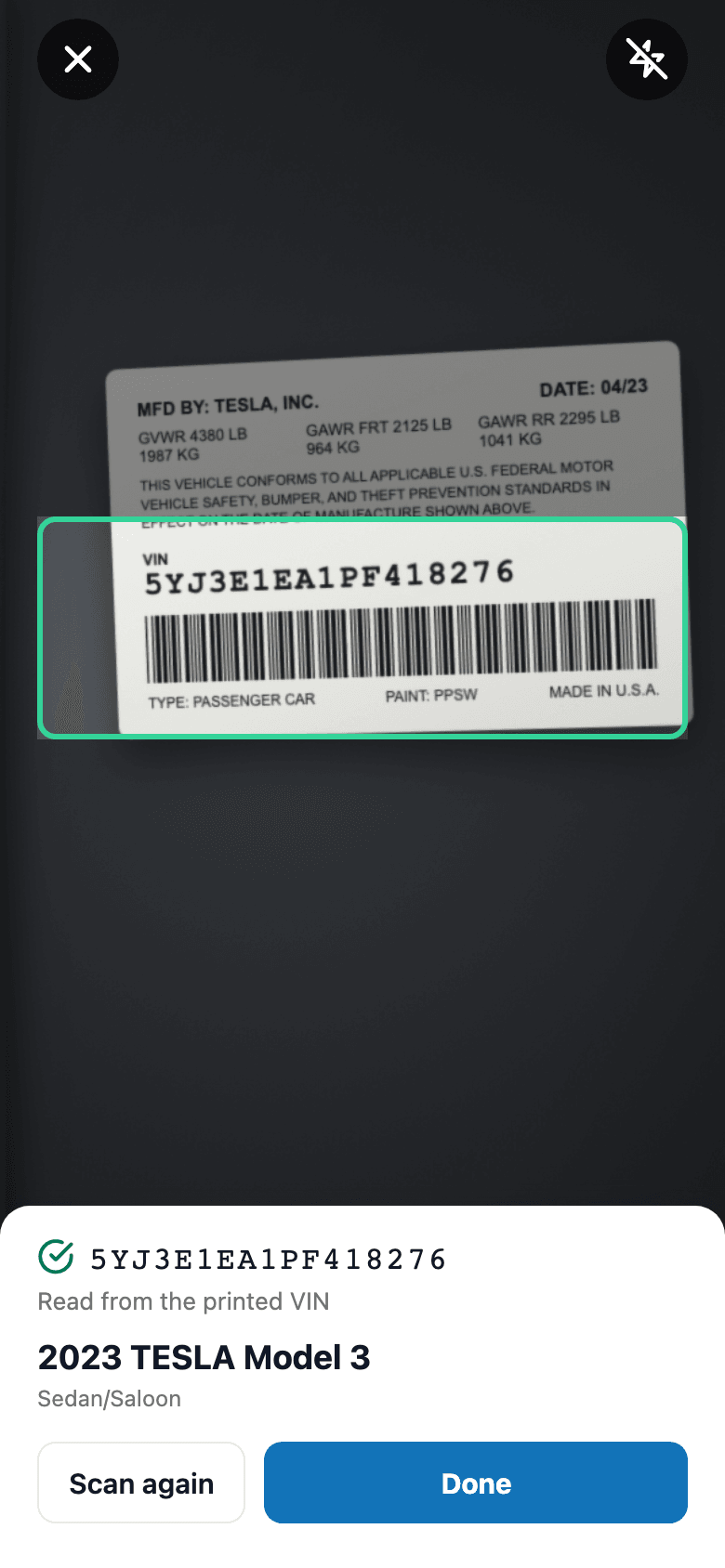
A real scan, read and decoded
Job Photos (Before / After / Damage)
Before and after photos, with AI that writes up the damage.
Photos are the most under-used tool in a tint shop. Shot right, they win disputes and turn every install into shareable content. SalesThumb captures before and after photos from the installer's phone (damage shots are tagged on the appointment's photo tab in the web app), links each shot to the appointment (and through it to the customer and vehicle), and gives the customer a branded gallery URL they can share. On the Pro plan, AI helps with damage too: mark an inspection item as an issue, snap a photo, and the AI writes up what it sees (the kind of damage, where it is, and how bad) as a draft note the tech can review, edit, or clear. When something goes wrong six months later — 'was that scratch there?' — you open one screen, see the pre-install damage-tagged photo with the timestamp, and the conversation's over.
- One-tap shortcut from today's schedule to the active appointment
- Before / After tabs on the job screen — pick one, then snap
- Photos stage on the job, then upload in one batch — a failed upload stays staged for a retry
- AI-suggested caption per photo in the web app (Pro plan) — edit or accept
What this looks like in a shop
Illustrative scenario: Black Tesla comes in, has a small scratch on the front bumper. Installer tags it as damage with a photo + caption. Three hours later the ceramic coat is done, installer captures 8 after-shots. Customer gets a laid-out gallery URL they can share with friends. The tagged, timestamped damage photo is there if a 'did you do this?' question comes up.
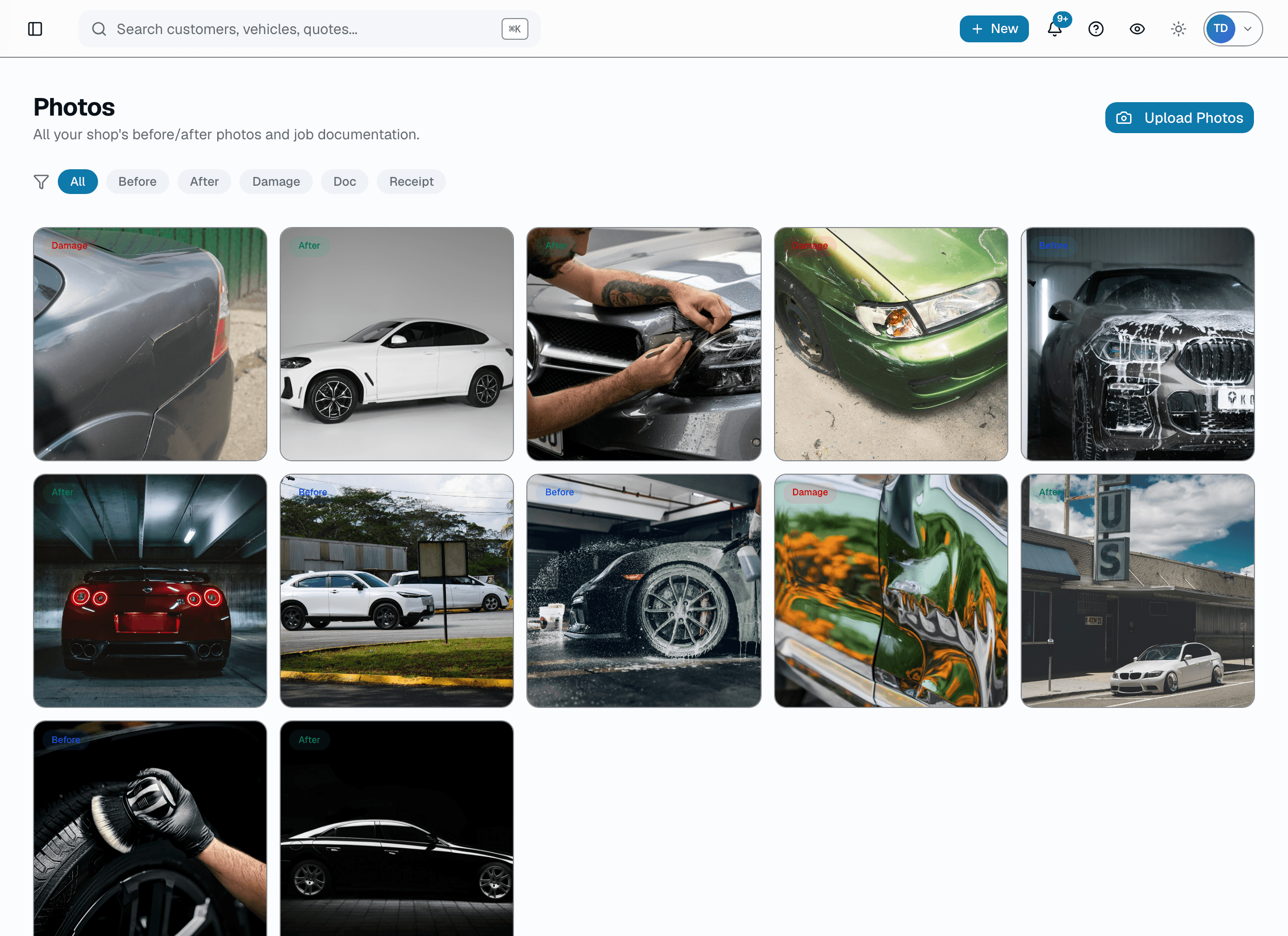
Gallery view
Also on mobile
Photo → Quote and Install QC — the two AI photo tools, on the Pro plan — sit right on the mobile app's Today screen, one tap from the installer's job queue.
Mobile app — team voice
Hold the button. Talk. It plays out loud on the other end.
Texting is slow when you've got tint film on your hands and a question for the guy in Bay 2. Walkie is push-to-talk built into the app everyone already has open: hold the mic button, talk, release — the clip goes to the whole shop or one teammate and plays out loud on their end automatically while they have Walkie open, no tap required (with the app closed it arrives as a push notification). Missed it? It stays in the inbox to replay, and a free on-device transcript sits right under the clip so you can skim what was said without hitting play.
- Hold-to-talk recording, release to send
- Send to the whole shop or one specific teammate
- Incoming clips auto-play out loud (toggle Live / Muted)
- Free on-device speech-to-text transcript under each clip — no cloud, no per-use cost
- Clips stay in the inbox to replay if missed
- Gated to staff with a mobile role (installer, sales, or manager) — internal comms only, no customer data
What this looks like in a shop
Illustrative scenario: Marcus is elbow-deep in a ceramic install and needs to know if the next customer's Tesla is checked in yet. He holds the Walkie button, says the question, releases — it goes to the whole shop and plays out loud on Priya's phone at the front desk within a few seconds, since she has Walkie open. She answers the same way without touching her keyboard. If Marcus missed it because he had earbuds in, the clip's still sitting in his inbox with a transcript underneath so he can read it instead of replaying the audio.
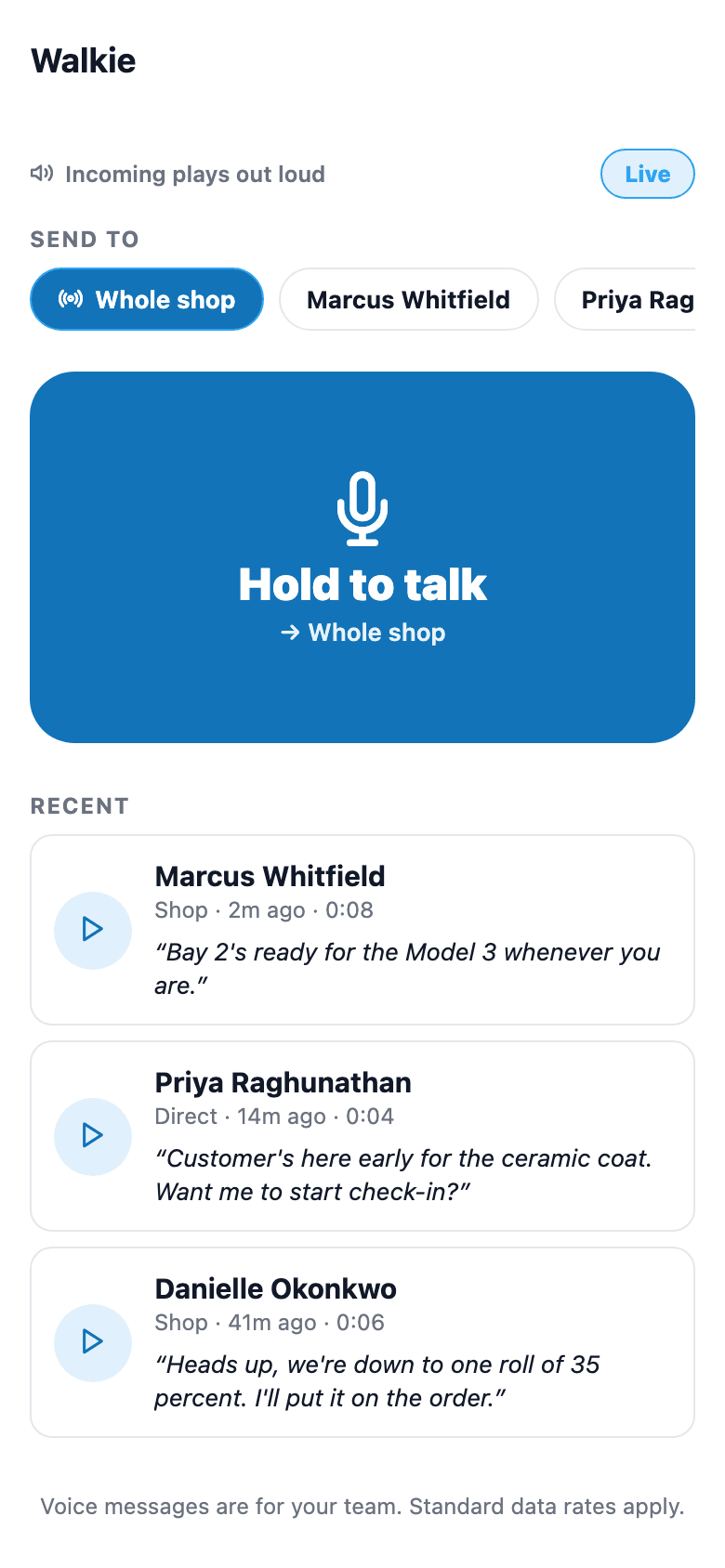
Hold to talk, transcript included
More in mobile app
Supporting tools that round out the pillar.
On-device push notification
New job assigned → push fires to the installer's phone within a few minutes, even when the app is backgrounded. A walkie-talkie voice clip also pushes instantly to its recipients. No push yet for reminders, time-off, or inbox messages.
Other pillars
The full feature taxonomy.