Every open quote on one drag-to-advance board
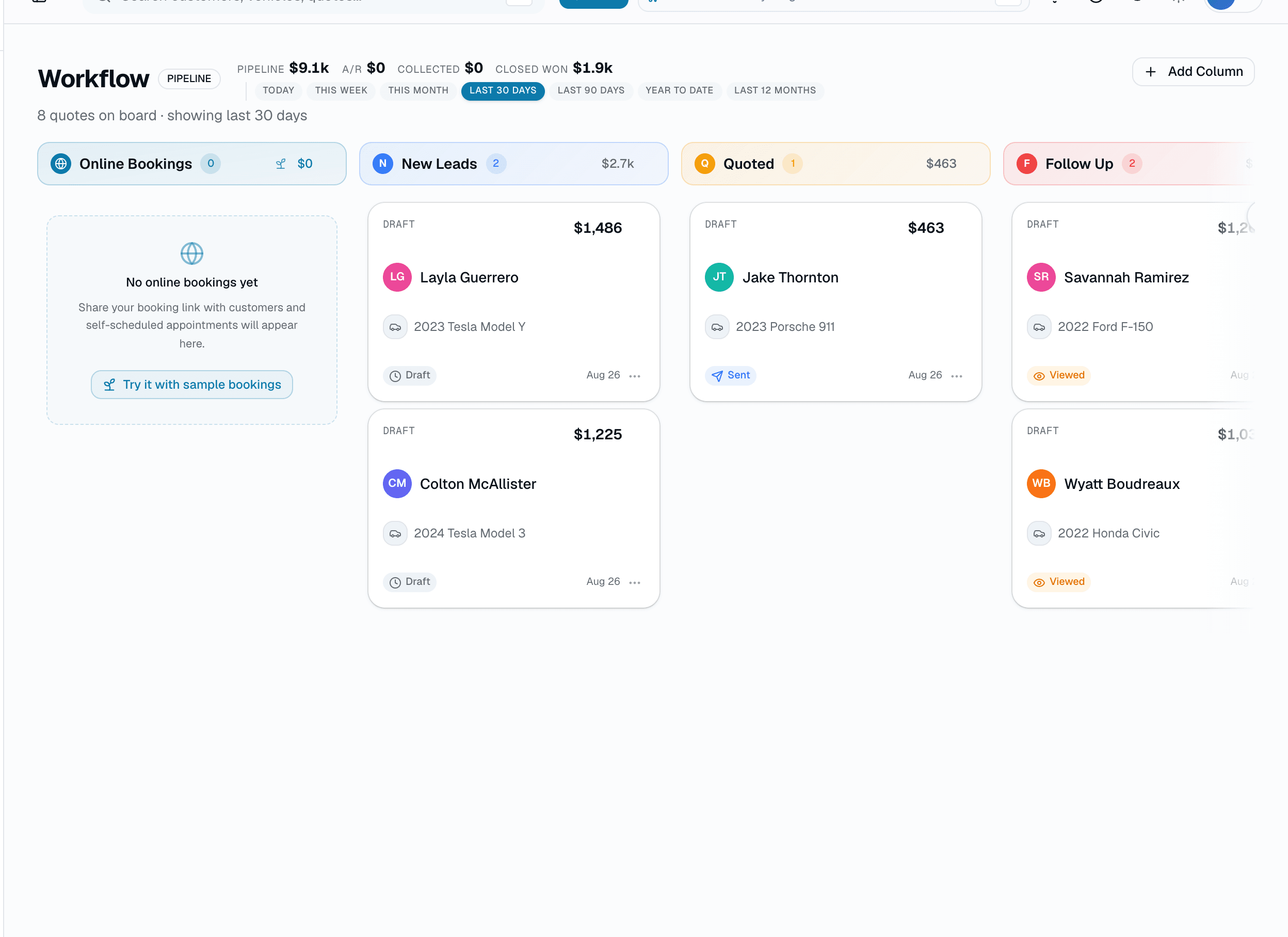
Most shops run the day from a whiteboard, a notebook, and a manager's head. The Workflow board replaces that with a single quote-based Kanban: every quote lives in a column, columns are fully customizable per shop (rename, recolor, add, mark terminal), and dragging a card into a terminal column automatically sets that quote's status to Approved.
The quick version
Job board: Every quote in progress on one drag-to-advance board.
- 6 default columns on signup — New Leads, Quoted, Follow Up, Scheduled, In Progress, Completed
- Drag-to-advance — moves the quote to a different column
- Dropping a quote in a terminal column auto-sets its status to Approved
A separate Unassigned lane holds quotes with no column yet, and a read-only Online Bookings lane shows new public-booking-page appointments that haven't been checked in.
Everything it does
The complete list. The plan tag above shows which plans include it.
- 6 default columns on signup — New Leads, Quoted, Follow Up, Scheduled, In Progress, Completed
- Drag-to-advance — moves the quote to a different column
- Dropping a quote in a terminal column auto-sets its status to Approved
- Pipeline / Projected / Collected value rollups + active-quote count
- Unassigned lane for quotes with no column yet
- Read-only Online Bookings lane — new public-booking-page appointments not yet checked in
- Custom columns — rename, recolor, mark terminal, add or delete columns anytime
- Vehicle photo thumbnail on each card (falls back to a generic car icon if none's uploaded yet) — same photo shows on the tech dashboard so installers confirm they've got the right car
Who it's for
Built specifically for…
- Shop owners who lose track of quotes halfway through the week
- Sales-counter staff who need to see what to chase before the morning rush
- Multi-tech shops where nobody remembers whose follow-up is whose
What it replaces
The old way…
- Whiteboards covered in sticky notes that fall off by Friday
- Spreadsheets re-segmented by hand every Monday morning
- Three browser tabs (CRM + calendar + invoices) you bounce between for one job
Setting it up
- 1
1. Start from the default columns, or customize
A new shop gets 6 columns automatically. Rename, recolor, reorder, mark any column terminal, or add your own — PPF teams often add 'Waiting on Film.'
- 2
2. Drag to move
Grab a card, drop it in another column. That's a plain column change — the only automatic side effect is that dropping a quote into a terminal column sets its status to Approved.
- 3
3. Watch the Unassigned and Online Bookings lanes
New quotes with no column show up in Unassigned. New public-booking-page appointments not yet checked in show up in a read-only Online Bookings lane you can click through to the calendar.
What this looks like in a shop
Illustrative scenario. A shop manager opens the Workflow board Monday morning. New Leads has a handful of inquiries; Follow Up has quotes sent Friday with no reply. She drags two into Scheduled after confirming by phone — that's a column change only, no automatic message fires from the board itself (the calendar booking, if any, is what sends the confirmation text). By afternoon a few jobs land in Completed, which auto-approves those quotes.
Good to know
- Which plan includes job board?
- Growth and Pro include it. See the Pricing page for everything in each plan.
- Can I customize the stages?
- Yes. Rename, recolor, mark as terminal, or add new columns anytime from the board. The default 6 cover most shops, but you can add whatever fits yours.
- What happens automatically when I drag a card?
- Only one thing: dropping a quote into a terminal column sets that quote's status to Approved. There's no automatic SMS, email, or activity-feed pulse triggered by the board itself — messaging is driven by the appointment/quote actions elsewhere in the app, not by a column move.
- How does this differ from the customer pipeline?
- Workflow tracks quotes — 'where is this quote right now?' Customer pipeline (a separate feature) tracks customers across a configurable relationship funnel — 'where is this customer right now?' They're separate boards over separate data.
- Where do online bookings land?
- In a read-only lane on the board — new appointments from the public booking page that haven't been checked in yet. You click through to the calendar to act on one; you can't drag an online-booking card into a column.
Pairs well with
Scheduling
Every installer, every bay, every appointment in one view. Drag to reschedule. Color-coded by status. Double-book detection with explicit confirm-to-override.
Quotes
Build a quote from real line items — services, film, parts, fees — send it, and the customer approves with a drawn signature and a card deposit on their phone. No account needed on either side.
Customer Pipeline
6-stage kanban (Lead → Prospect → Active → At Risk → Won Back → Churned) that starts as a clean template and moves by drag-and-drop — plus optional auto-stage rules you configure yourself for the moves you'd rather not do by hand.
Live job tracker
Generate a public /track/<token> URL for any appointment and text it over — the customer follows along like a pizza-delivery tracker, no login required.
Two-way SMS
However a customer reaches you — a text, an email, a Facebook or Instagram message, or WhatsApp — it lands in the same inbox, on the same customer, and you answer from there.