The calendar your shop actually runs on.
A shared calendar every installer and bay assignment pulls from, in day, week, and month views. Drag a card to a new day in week view and it moves — a drag or an online booking that double-books a bay is blocked outright, and adding a new appointment by hand flags the conflict and lets you confirm an override.
The quick version
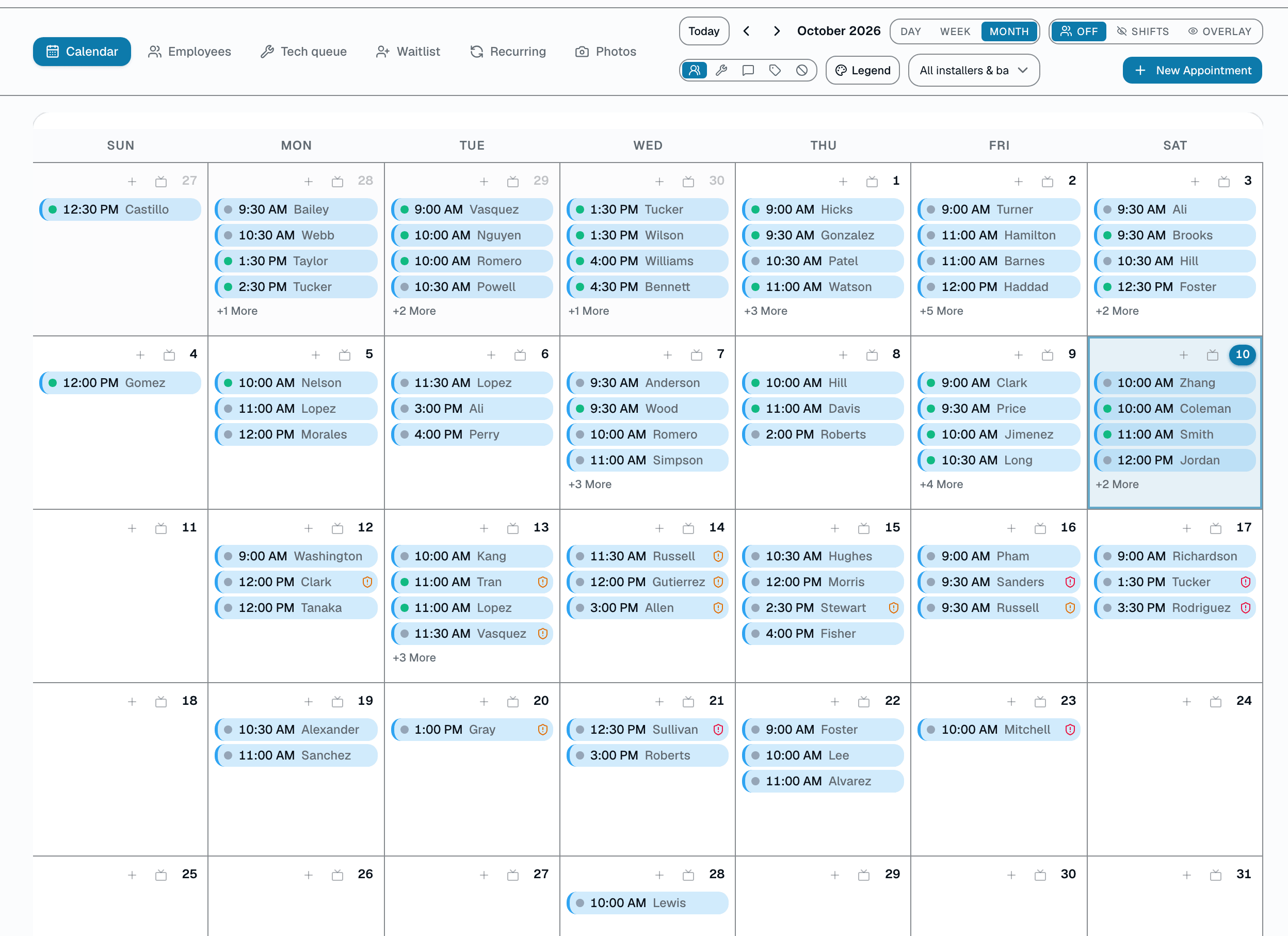
Calendar: One calendar for every installer, bay and appointment.
- Day, week, and month views
- Every appointment shows its assigned installer or bay
- Filter by installer/bay from the calendar toolbar
On Starter and up, confirmations, reminders, and no-show follow-up texts go out on their own (Basic has no outbound SMS or email). Opens online booking to your customers without opening a scheduling hole.
A closer look
01
Drag a job to a new day; double-bookings are blocked
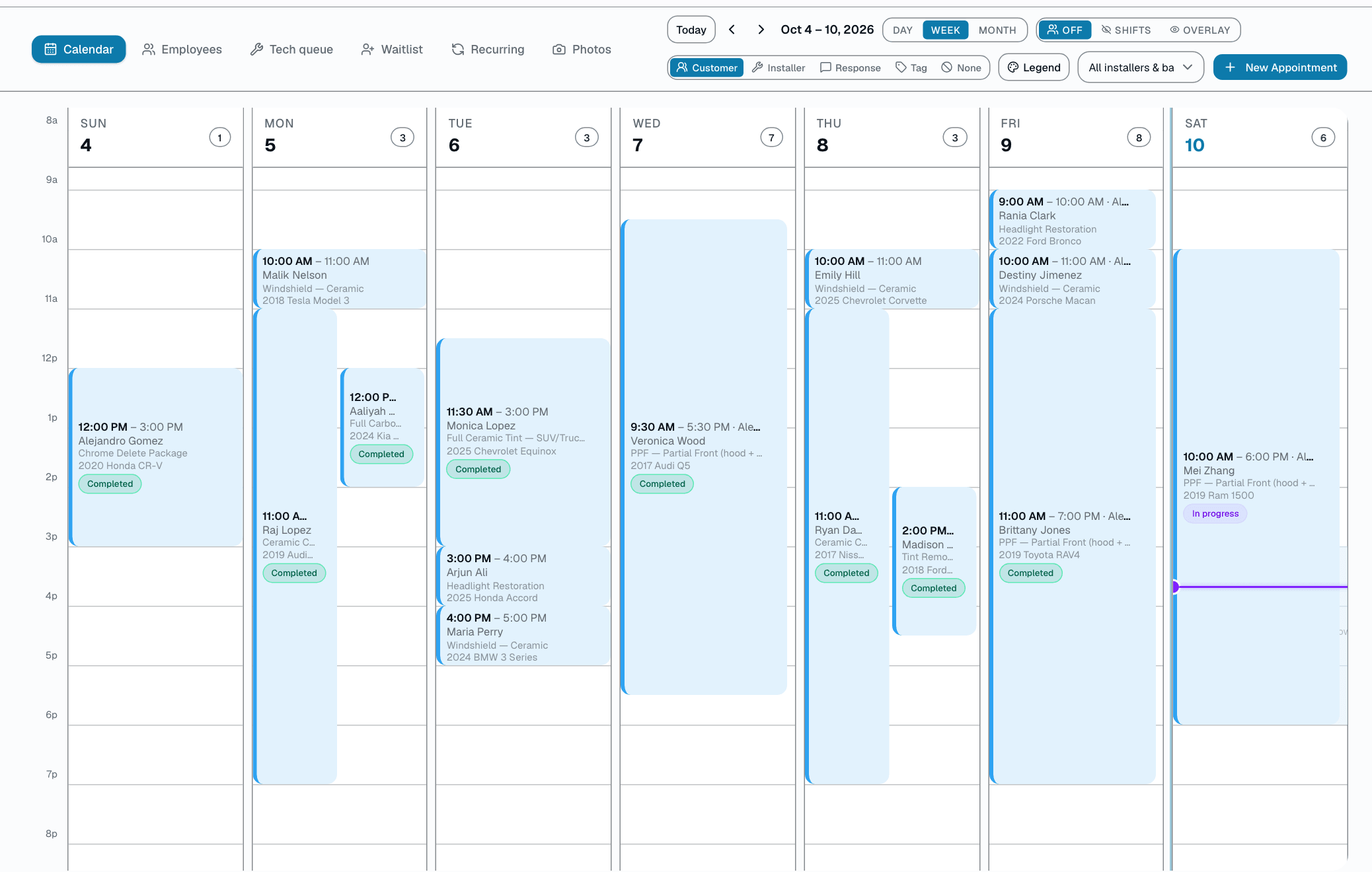
Most shops run the calendar on a whiteboard, a Google Calendar, and a manager remembering who's coming in at noon. That falls apart the moment a cancellation hits. In week view, grab an appointment card and drop it on another day — it moves there, same time of day, in about a second. The conflict guard runs on every drag, manual reschedule, and online booking: if the assigned bay or installer is already booked for that window, the change is rejected. A new appointment staff add by hand flags the conflict and can be booked anyway after an explicit confirm. Every reschedule is written to the audit log with the old and new time.
- Week view: drag a card to another day, same time of day
- Day and month views are click-through, not drag targets
- Resource-conflict guard blocks the move if it double-books
- Audit log records who moved what, when
02
Recurring appointment templates for repeat customers
Commercial accounts and repeat customers — monthly detailing, quarterly ceramic refreshes — don't need to be rebooked by hand every time. Set up a recurring template once (customer, service, installer/bay, a weekly/biweekly/monthly/quarterly/yearly cadence, and a start time) and the system creates the next appointment on your calendar automatically when it's due, then schedules the one after that. Toggle a template off or delete it any time; there's no per-instance editing or bulk-shifting a series — each generated appointment is a normal appointment you can move or cancel on its own.
- Weekly, biweekly, monthly, quarterly, or yearly cadence
- Auto-creates the next appointment on your calendar when it's due
- Enable/disable or delete the template any time
- Each generated appointment is edited individually, like any other
Recurring appointments
Frequency
Auto-creates the next appointment on your calendar when it's due.
Hertz Fleet — Downtown
Every 2 weeksPriya M.
MonthlyGrace H.
Every 3 months03
One tap texts the next customer on the waitlist
A cancellation used to mean an empty bay and lost revenue. Add a customer to the waitlist with their service and date preference, and when you free up a slot, tap Notify — we text them (or email if they have no phone on file) that an opening came up and to reply or call to grab it. You can notify by hand from the waitlist page, and canceling or no-showing an appointment automatically offers the opening to the oldest waiting customer for that service, one customer at a time, never a blast to the whole queue. There's no race-to-reply booking logic — you still book the appointment yourself once they respond.
- One flat waitlist per shop — each entry records its customer, vehicle, and service
- One-tap manual notify, plus an automatic offer to the oldest matching entry on a cancel or no-show
- SMS first, email fallback if there's no phone number
- Waiting / Offered / Confirmed status tracked per entry
Waitlist
Add to waitlist3
Waiting
1
Offered
0
Confirmed
Priya M.
waitingMarcus L.
waitingCarlos V.
offeredGrace H.
waitingEverything it does
The complete list. The plan tag above shows which plans include it.
Views & navigation
- Day, week, and month views
- Every appointment shows its assigned installer or bay
- Filter by installer/bay from the calendar toolbar
- Jump to any date with Today / prev / next
- Dark mode that works in a bright shop
Booking & capacity
- Drag a card to a new day in week view (same time of day)
- Overbooking prevention on the assigned bay or installer
- Recurring appointment templates for repeat customers
- Waitlist with one-tap notify, plus an automatic offer to the next waiting customer when an appointment is canceled
- Online booking page wired to the same calendar
Automation & comms
- Auto-send SMS confirmation on new booking
- 24h and 1h reminders (SMS or email, set per template)
- No-show → automatic we-missed-you text to the customer
- Ready-for-pickup text when status flips
- Apple/Google/Outlook Calendar feed (one-way, per-shop iCal subscription)
A tour of the screens
Every meaningful view, the path through it, and the moments that matter — so you know exactly what you're buying.
Day view
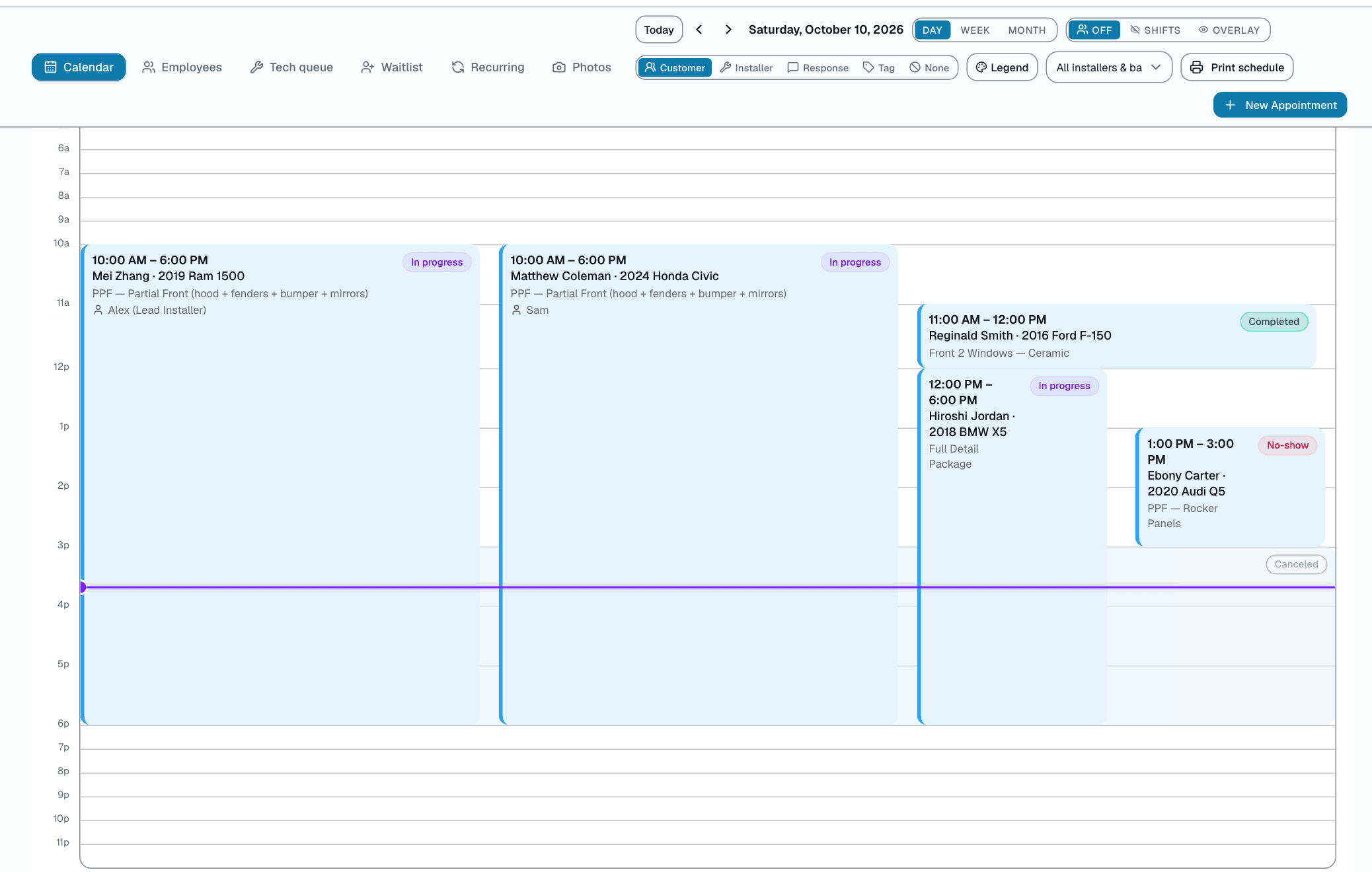
An hour-by-hour timeline of the day's appointments, each colored by which installer or bay it's assigned to..
Drag to reschedule
In week view, grab a card and drop it on another day — same time of day, blocked automatically if that resource is already booked..
Week overview
Seven day columns on a shared hour grid — drag a card to another day to reschedule..
Appointment detail
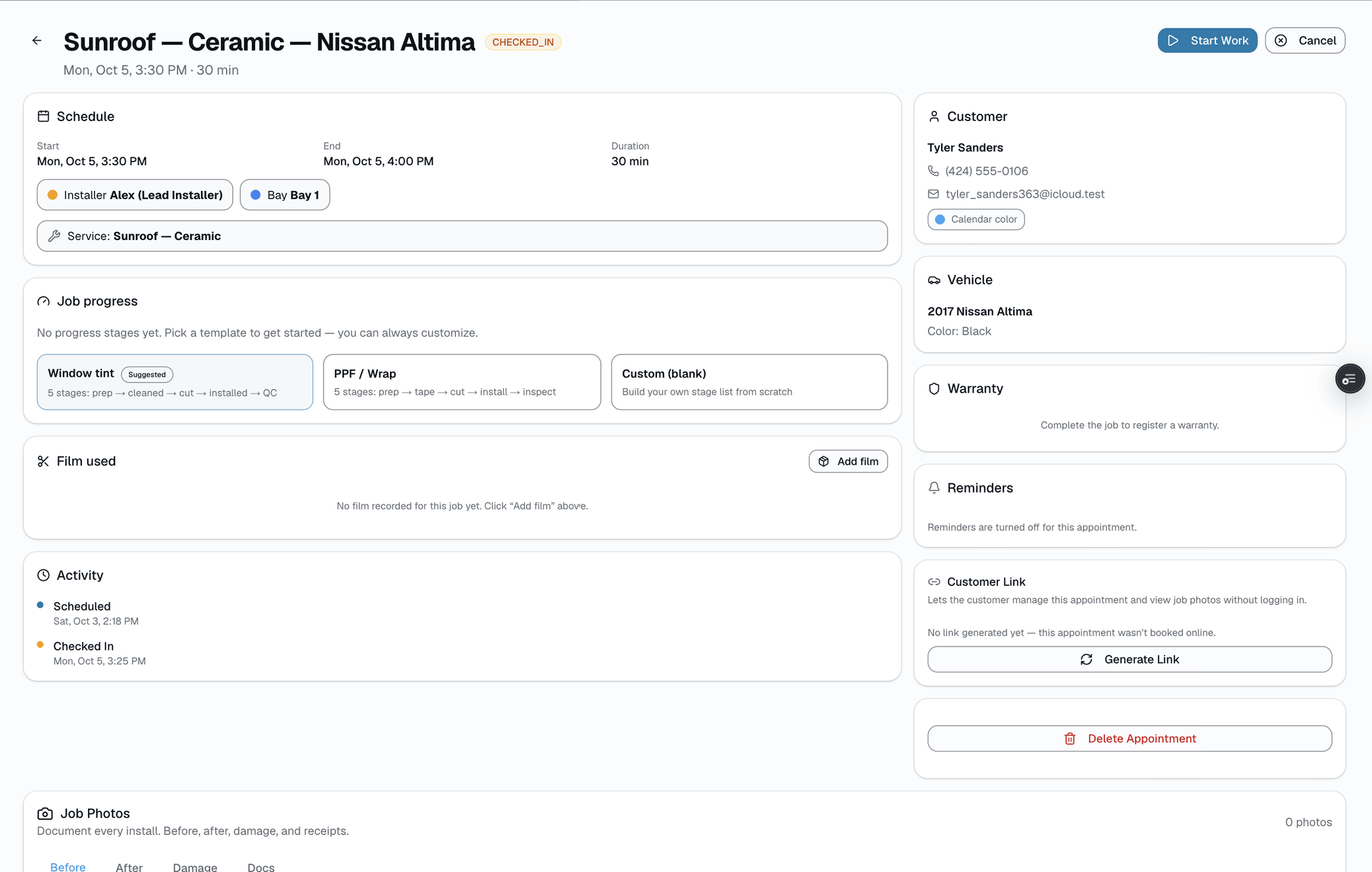
Tap any appointment for customer, vehicle, assigned installer/bay, notes, photos, and a status-progress button — all without leaving the calendar..
Business hours
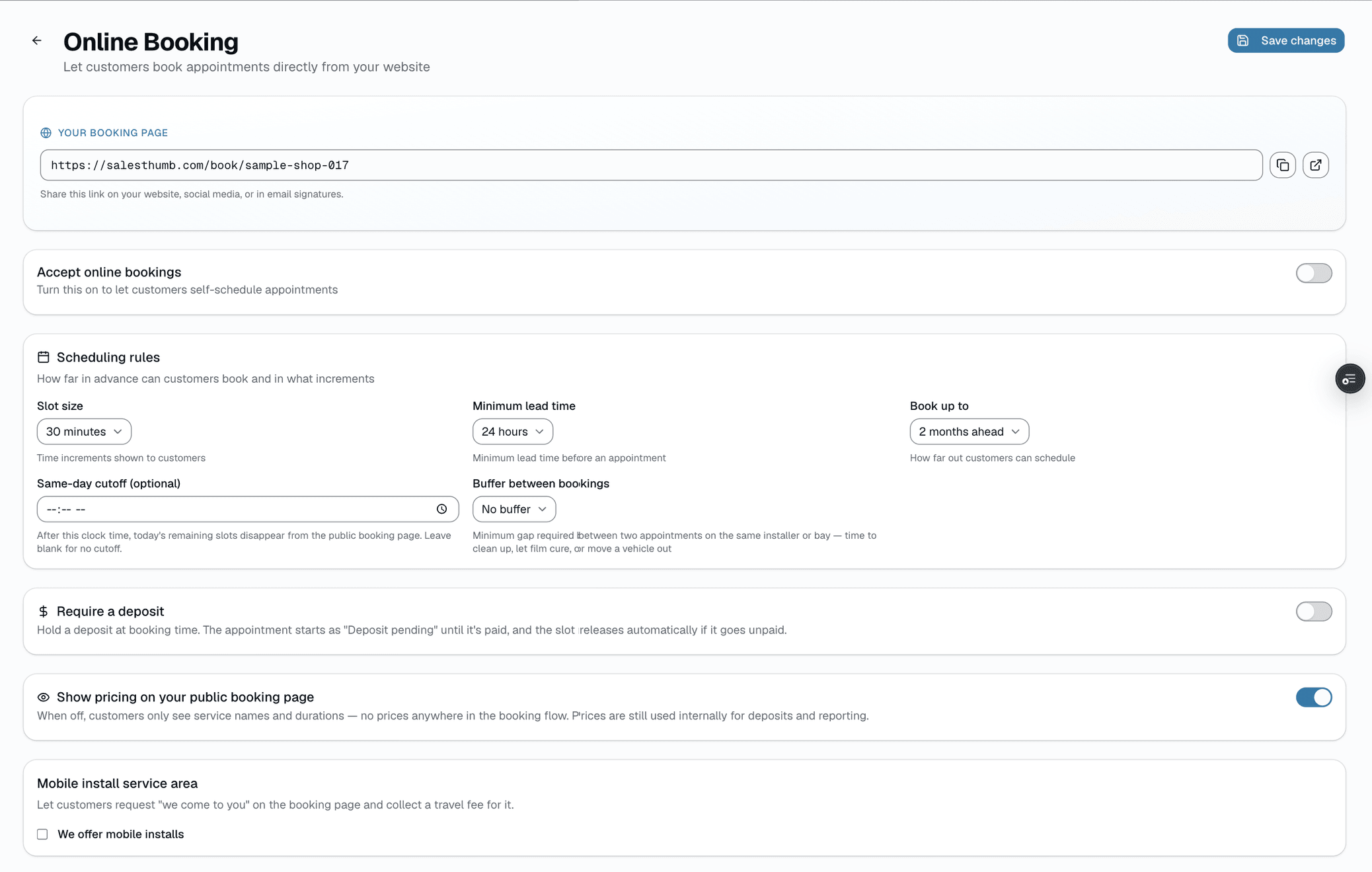
Set one open/close window per day and your online booking policy — lead time, advance-booking window, deposit rules..
Who it's for
Built specifically for…
- Single-location tint shops with 2-5 installers
- Multi-bay shops tracking installer-by-bay assignment
- PPF & wrap shops juggling multi-day jobs
- Detail shops with recurring commercial accounts
- Mobile tint crews booking jobs at customer addresses
What it replaces
The old way…
- Whiteboard + sticky-note calendar
- Shared Google Calendar (with the double-booking problem)
- Paper day-sheets the front desk re-writes each morning
- Separate booking tool glued to a separate CRM
- That one staff member who "just knows" the schedule
Setting it up
- 1
Add your installers and bays once
Add each installer and each bay as a resource with its own color. Installer and bay are independent fields on every appointment — set one, both, or neither — and each is checked for double-booking on its own; the calendar's day view, week view, and month grid use the installer's color when one's assigned, falling back to the bay's color otherwise.
- 2
Book from anywhere
Front desk drops in a new appointment. Online booking lands a new one. The public booking page writes to the same calendar and both paths run the same overbooking check; the online page blocks a double-book outright, while front desk can confirm an override.
- 3
Move it in week view
Plans change. In week view, grab an appointment card and drop it on another day — same time of day, new date, blocked automatically if that bay or installer is already booked then. Day and month views are for browsing and clicking through, not dragging.
What this looks like in a shop
Illustrative scenario: Saturday is chaos at most shops. A customer calls wanting a PPF install on Friday. Open the calendar — day view lists everything scheduled, each row colored by which installer or bay it's assigned to. Book the new appointment against an open installer, and their confirmation text goes out right away. If a Friday job needs to move, drag it to a different day in week view; the assigned bay's conflict check blocks it if that slot's already taken.
Good to know
- Which plan includes calendar?
- Every plan includes it, Basic through Pro. See the Pricing page for everything in each plan.
- Can I have different business hours per day?
- Yes — set one open/close window per day in Settings → Booking. The online booking page respects them automatically.
- What if a customer no-shows?
- Mark the appointment No-Show and we automatically text the customer that you missed them (Starter and up). Rebooking is still a staff follow-up: the link in that text doesn't let them pick a new time on their own today. There's no automatic deposit-forfeiture rule; if a deposit was collected, refunding or keeping it is a manual call you make on the invoice.
- Can two installers work the same job?
- Yes. Each appointment has one lead installer plus optional helper techs. Helpers are checked for double-booking like the lead and show on their own lane in Day view; commissions, tech pay, and reports still credit the lead installer. Installer and Bay are separate, both-optional fields, each with its own double-booking check.
- Do staff get their own calendar view?
- Yes — the mobile app's Schedule tab shows the team's jobs for the day, and roles control who can also see and edit the full shop calendar.
- What about walk-ins?
- Add a walk-in from Calendar → New Appointment — pick or quick-create the customer, choose a service and an installer/bay, and it lands on the calendar immediately. No friction when the shop is busy.
- Can I block out a bay for maintenance?
- Not as a dedicated feature today — mark the installer or bay inactive in Settings → Resources if it's out of service for a while, or just don't book into it.
Works with your stack
Twilio
Sends confirmations and reminders via SMS
Apple/Google/Outlook Calendar
Subscribe to a one-way, per-shop iCal feed
Payment processor
Optional deposit collected at booking time
Inngest
Drives durable reminder and recurring-appointment jobs
Pairs well with
Online Booking
Your own branded booking URL — salesthumb.com/book/your-shop. Customers pick a service, a time, and pay a deposit if you require one. It runs 24/7.
Two-way SMS
However a customer reaches you — a text, an email, a Facebook or Instagram message, or WhatsApp — it lands in the same inbox, on the same customer, and you answer from there.
Customer CRM
Search by name, plate, or VIN in milliseconds. Every appointment, quote, invoice, warranty, and photo attached to the right record — forever.